
Welcome to Roster Athletics. This guide walks you through everything you need to get up and running — from logging in for the first time to setting up your first competition.
Important: Roster Athletics has two separate platforms with separate accounts. The Competition Management Platform (admin.rosterathletics.com) is for organizers/organisers managing competitions. The Registration & Results Platform (meets.rosterathletics.com and the Roster Athletics app) is for athletes, fans, and registrants. An account on one platform does not work on the other.
1. Getting Access
If you do not yet have an organizer/organiser account, request access by completing the form at about.rosterathletics.com/en-GB/start-free-trial. Once your account is set up, you will receive your login credentials by email.
2. Logging In
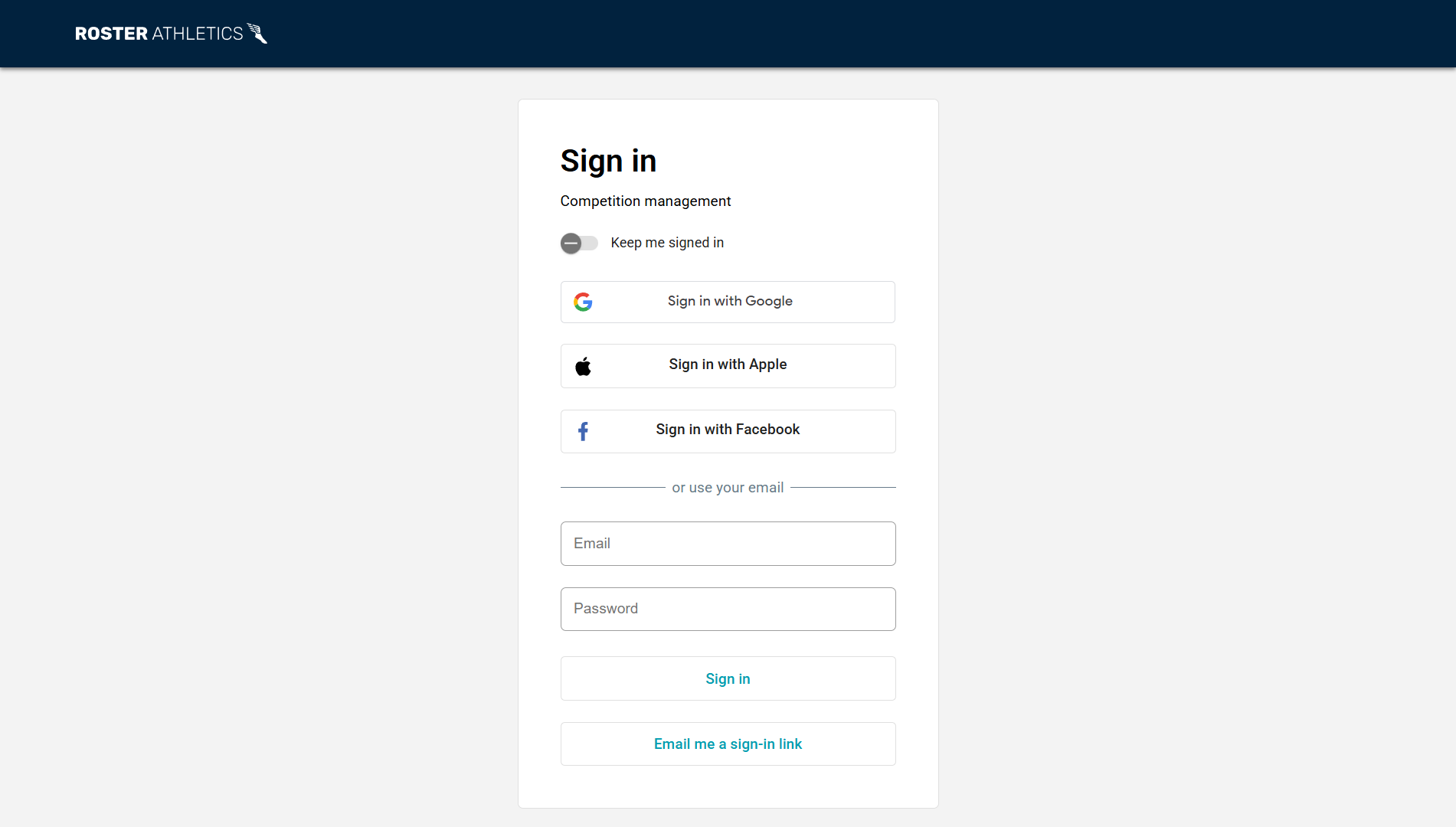
Log in to the Competition Management Platform at admin.rosterathletics.com using the credentials you received by email.
Keep me signed in
When logging in, you can tick the Keep me signed in option to stay logged in across browser sessions. This means you will not need to log in again when you close and reopen your browser.
Important: Only enable this option on a private, trusted device. Do not use it on a shared, public, or work computer where others may have access.Magic link
Instead of entering your password, you can request a magic link — a one-time sign-in link sent to your email address. Click the link in the email to log in instantly, without needing your password. The link expires after 15 minutes.
Single Sign-On (SSO)
You can also sign in using Google, Apple, or Facebook if you have linked your Roster account to one of these services. To set this up, see the User settings guide.
Language
You can change the interface language by clicking the language selector at the bottom of the login page, or from your user settings after logging in.
Supported browsers
Roster Athletics works best in modern browsers. The following are supported: Google Chrome, Mozilla Firefox, Microsoft Edge, and Safari. Internet Explorer is not supported.
3. Platform Overview
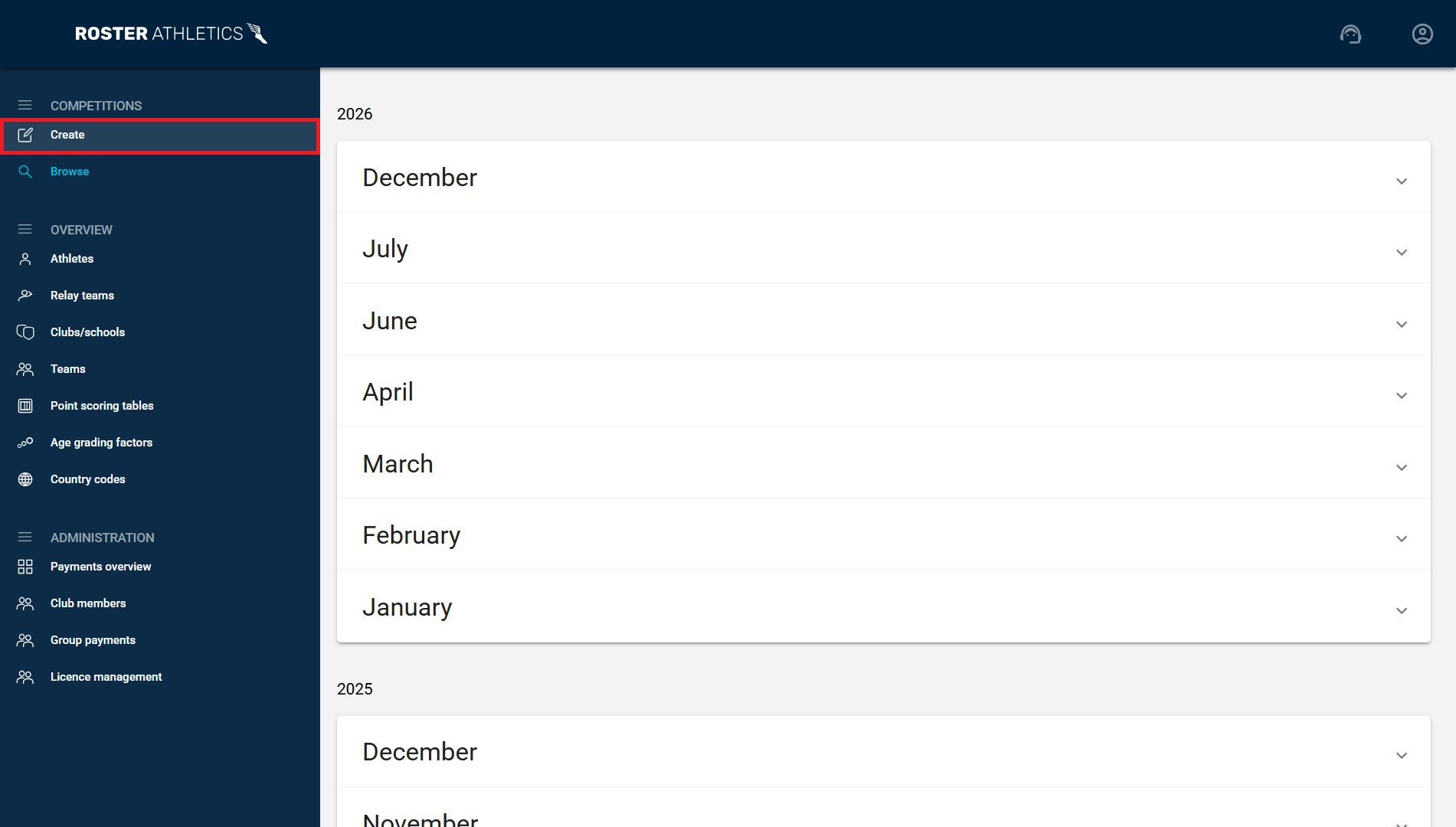
Once logged in, the left-hand navigation menu gives access to all platform areas. Visibility of some features depends on your role in your organization/organisation. Learn more in the Organizer/Organiser roles user guide. The table below lists all menu items, the roles required to access them, and what each does.
| Feature | Role | What it does |
|---|---|---|
| Competitions | ||
| Create | Creator | Create a new competition. |
| Browse | All | View all your competitions. |
| Details | Creator | View and edit competition details. |
| Feed | Creator | Manage comments added to the feed. |
| Team competitions | Creator | Set up a team competition. |
| Individual scoring | Creator | Configure and see individual scoring. |
| Events | Creator | Manage competition events. |
| Schedule | Creator | Manage competition schedule. |
| Event visibility | Creator | Edit events' visibility. |
| Initial records | Creator | Add initial records, such as meeting records and world records. |
| BIB allocation | Creator | Allocate and edit BIBs. |
| Start lists | Creator | Manage all start lists. |
| Check-in | Creator | Check in or scratch athletes. |
| Results | Creator | Enter, edit and view results. |
| Team results | Creator | View team results. |
| Participants overview | Creator | View, filter and sort the list of all participants. |
| Jobs | Creator | Update athlete records, validate licences, etc. |
| Registration | ||
| Registration setup | Registrator | Set up and enable registration. |
| Products & add-ons | Registrator | Add products to your registration. |
| Discounts | Registrator | Add discounts and coupons. |
| Questionnaire | Registrator | Add questions to registration. |
| Management — events | Registrator | Manage registrants. |
| Management — products & add-ons | Registrator | Manage purchased products. |
| Management — competition fees | Registrator | Manage competition fees. |
| Emailing | Registrator | Send important updates to participants. |
| Overview | ||
| Athletes | All | Search, view and manage athlete profiles. |
| Relay teams | All | Search, view and manage relay team profiles. |
| Clubs/schools | All | Search, view and manage club and school profiles. |
| Teams | All | Search, view and manage team profiles. |
| Point scoring tables | All | View and filter point scoring tables. |
| Age grading factors | All | View and filter age grading factors. |
| Country codes | All | View the list of country codes. |
| Administration | ||
| Competition approval | Statistics approver | Approve statistics for a governing body. |
| Payments overview | Accountant | View and download payment transaction details. |
| Club members | Club manager | Verify club members. |
| Group payments | Club manager | Make group payments. |
| Licence management | Licence manager | View the list of athletes with licences. |
| Other | ||
| User settings | All | Manage your account, language preferences, and SSO connections. |
| AI Support Assistant | All | Ask questions related to the Roster Athletics platform. |
4. Creating Your First Competition
To create a new competition:
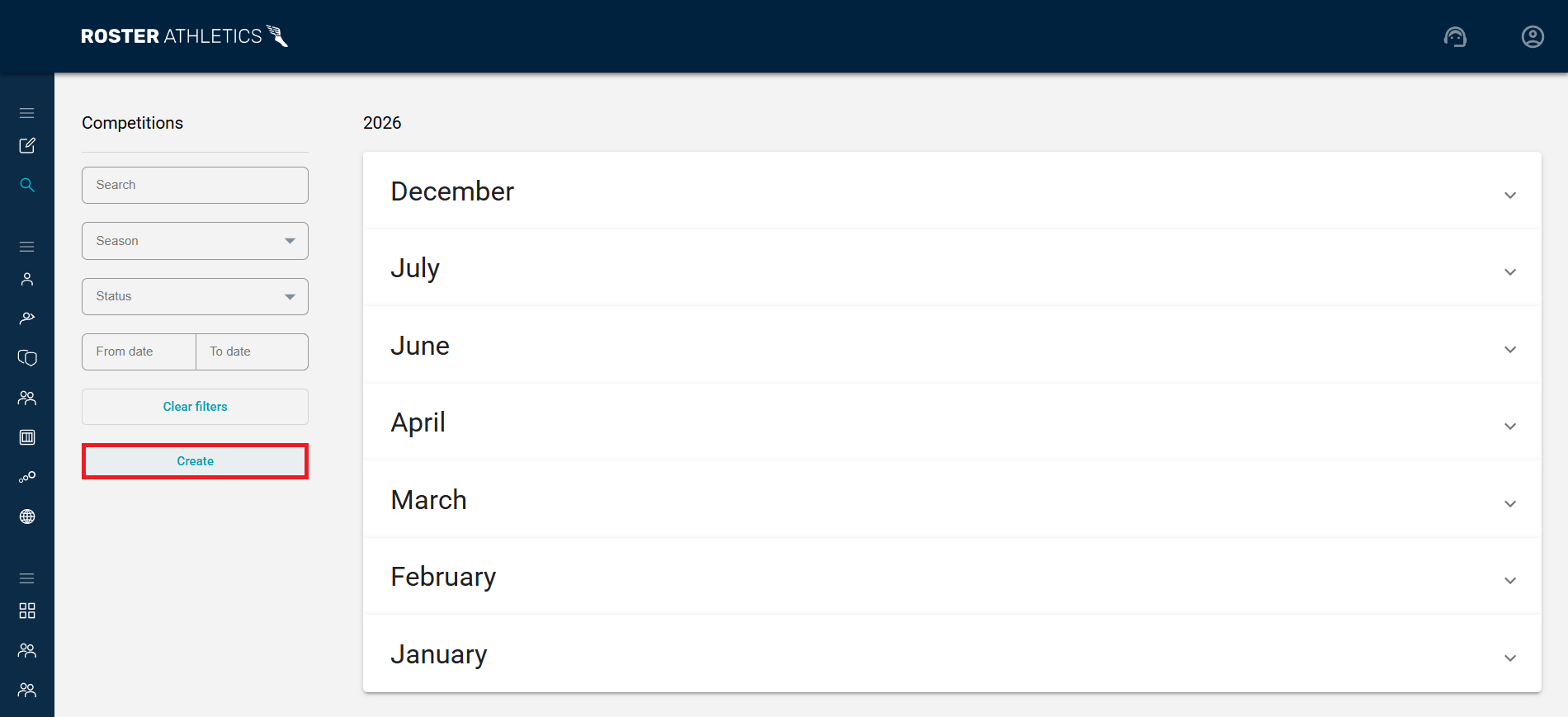
- In the left-hand menu, select Browse and click the Create button, or select Create directly from the menu.
- In the window that opens, select a competition profile.
Competition profiles
The profile you choose determines which events and configuration options are available. There are two profiles:
Profile | Use this for |
Track & Field | All athletics events. Includes the full set of events and all configuration options. Use this profile for track and field competitions, combined events, and championships with track and road events in the program. |
Road Race | Cross country, road running, fell, and trail events. Simplifies event configuration by showing only relevant options. |
For full details on profiles, see the Select a competition profile guide.
Tip: Want to explore the platform before going live? Create a Testing competition to try things out without affecting real data.
5. Typical Workflow
Most competitions follow the same setup sequence. The steps below reflect the typical order in which things are done — each step links to a dedicated guide with full instructions.
Step | Task | Guide |
1 | Set up the competition | Configure the name, date, venue, and general settings. → Guide (T&F) or Guide (race) |
2 | Add events and age groups | Define the programme — which events will run and which age groups compete. → Guide 1 and Guide 2 |
3 | Add athletes and start lists | Import athletes via CSV or add them manually, and assign them to events. → Guide |
4 | Set up registration (optional) | Enable online registration so athletes can sign up and pay directly. → Guide |
5 | Add team competitions (optional) | Configure team scoring if the competition includes team results. → Guide |
6 | Assign permissions | Give other officials or co-organisers access to edit the competition. → Guide |
7 | Connect timing system (optional) | Install and configure RosterAgent to sync with FinishLynx, Eagle Eye Pro, TimeTronics or RACE RESULT. → Guides |
8 | Enter results | Record results during the competition using the web platform or the Meet Mgmt app. → Guides |