
You can prepare start lists for all events and their groups using the Seed option.
To add more groups to an event, go to Schedule, or set the correct number of groups directly under Seeding after adding athletes to the start list.
Step 1
Add all athletes to the start list. For more information, refer to the Create start lists guide.
Step 2
Click the Seed button in the upper right corner of the start list.

Step 3
Configure the seeding parameters as needed and click Seed. You can manually reassign participants between groups at any time using drag-and-drop.
Please note: Re-seeding an event that already has results recorded will clear or update place assignments if automatic place calculation is enabled.

Please note for field events: Moving an athlete with a result from one group to another will remove all attempts for the affected athlete.
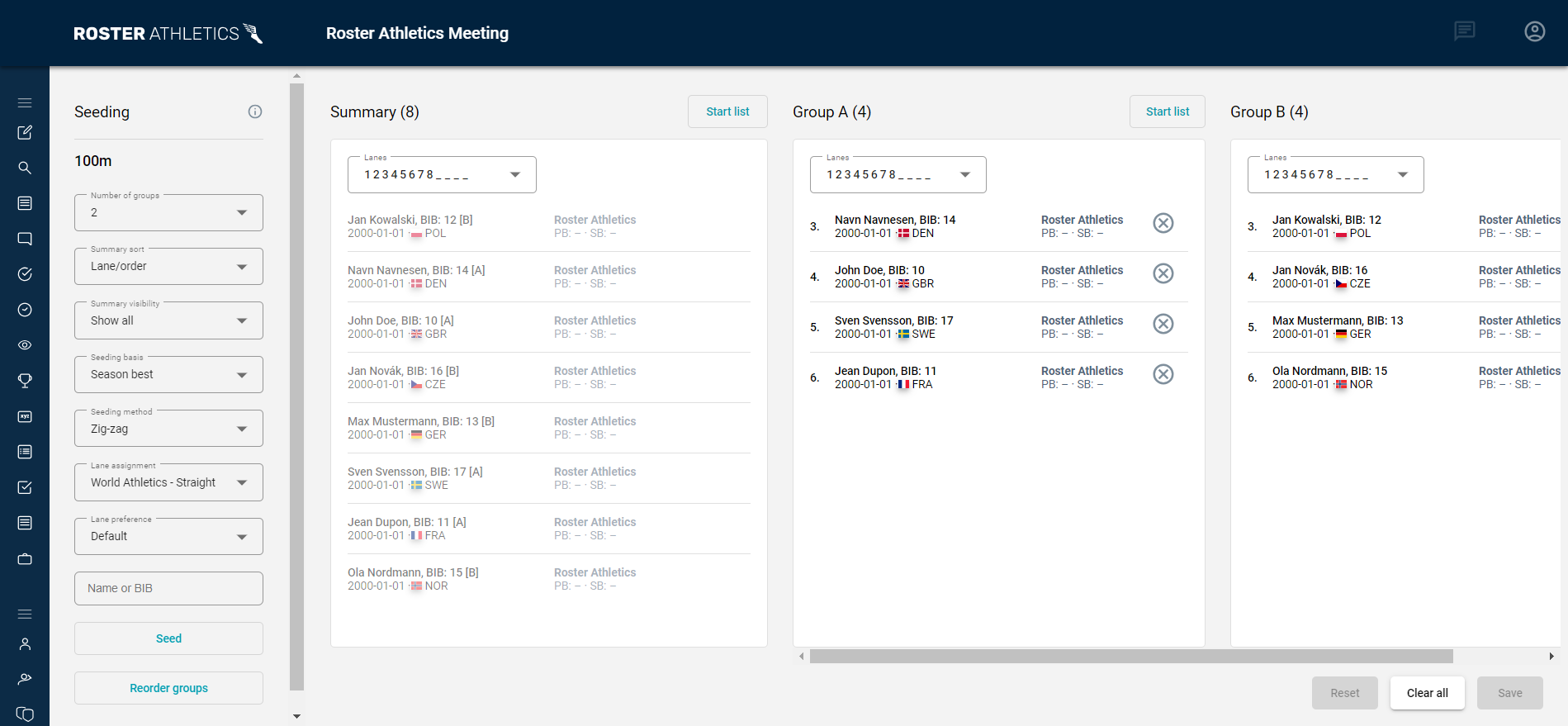
The drag-and-drop option is not available for events with more than 300 participants. If you want to move an athlete in such a situation, click the three dots icon next to the athlete's name and select Assign to (if you want to change the group) or Move up/down if you want to change the order.Seed parameters:
Number of groups
- Select the number of heats or groups.
Summary sort — sorting parameter for the summary list. Visible when there are at least two groups.
- Lane/order
- BIB
- Given name/First name
- Surname/Last name
- Name (for relays)
- Personal best
- Season best
- Seeding result
- Qualifying result (only used if seeding is based on a previous round, e.g., heat → final)
- Group
- Club name
- Team name (only if team competition is enabled)
Summary visibility — controls what is shown in the summary list. Visible when there are at least two groups.
- Show all
- Show unseeded
- Filter the summary list by participant name or BIB using the Name or BIB field
Seeding basis — determines what the seeding is based on.
- Personal best
- Season best
- Seeding result
- Qualifying result (available if it is a multiple-stage event)
Seeding method — click here for details of all seeding methods.
- Alphanumerical (BIB)
- Alphabetical (surname/last name/name for relays)
- Circle
- Manual
- Random
- Timed / Results (Timed for track events and Results for field events)
- Timed oval (Indoor) (only for track events)
- Zig-zag (the official World Athletics sanctioned method)
Lane assignment / Order assignment — click here for details of all lane and order assignment methods.
- Alphabetical (last name or name for relays)
- Alphanumerical (BIB)
- Best-to-worst (only field events)
- Worst-to-best (only field events)
- Manual
- Random
- Half & half (only track events with lanes)
- Pairs (only track events with lanes)
- Pairs oval (indoor) (only track events with lanes)
- Standard alley (outside-in) (only track events with lanes)
- Standard alley (inside-out) (only track events with lanes)
- Waterfall
- Waterfall (reversed)
- World Athletics - Straight (8 Lanes) (only track events with eight lanes)
- World Athletics - Straight (9 Lanes) (only track events with nine lanes)
- World Athletics - 200m (8 Lanes) (only track events with eight lanes)
- World Athletics - 200m (9 Lanes) (only track events with nine lanes)
- World Athletics - 400m/800m (8 Lanes) (only track events with eight lanes)
- World Athletics - 400m/800m (9 Lanes) (only track events with nine lanes)
- World Athletics - Half & pairs OLD standard (only track events with lanes)
Lane preference — how to fill lanes when there are more lanes than athletes.
- Default
- Use inner lanes
- Use outer lanes
Please note: The Lane preference field will be ignored when the World Athletics - Straight, World Athletics - 200m, World Athletics - 400m/800m lane assignment methods are selected.
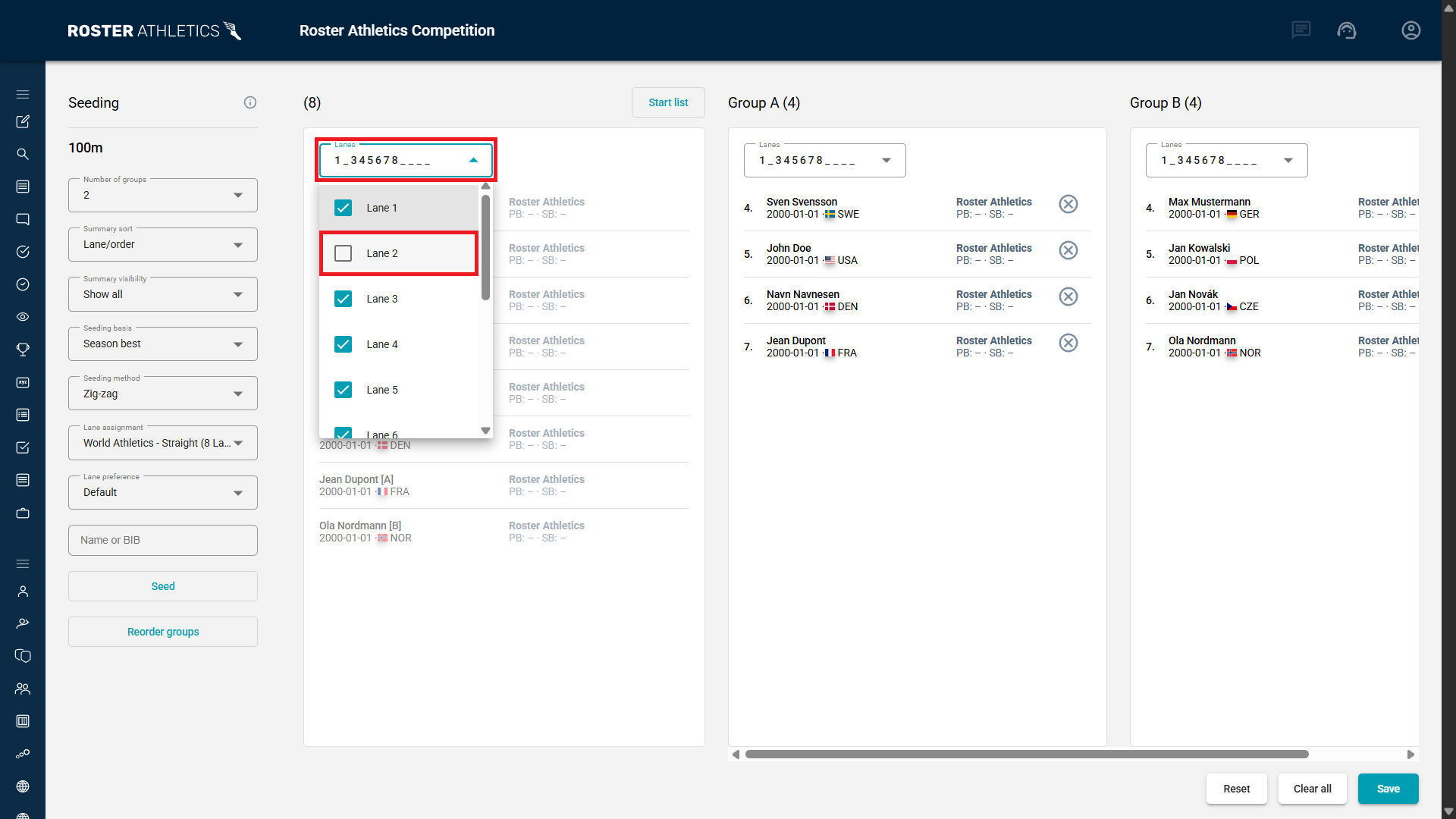
Lanes — select which lanes will be used for the event.
- Select the relevant lanes for all groups under the summary.
- Select the relevant lanes for each group, if needed.
To disable a lane (e.g. due to a damaged track surface), click the Lanes field and deselect the relevant lane.
Step 4
For sprint events, lanes are automatically assigned based on an athlete's position on the group's start list.
Step 5
If an event has multiple heats or groups, you can change the group order by clicking Reorder groups and selecting the desired method: Randomise or Reverse. The button is located in the lower left corner of the screen, below the Seed button.
Step 6
If an event has multiple rounds, you can set advancement rules by clicking the Advancement button. For more information, see the Qualifying rounds guide.
For track events where two athletes share a lane (e.g., 800m), select Two athletes per lane from the Stacking list and specify which lanes are affected.
