
When your competition is ready, you can start adding results. We recommend using the Meet Mgmt app to add results for field events (please see our Roster Athletics: Meet Mgmt app guides for more details). However, you can also add all results manually in the web admin system. You can do this under the Results tab.

This guide is divided into the following sections:
- Events list
- Adding heights
- Adding results and places
- Sorting participants
- Records
- Status (NM, DQ, DNS)
- Notes (athlete)
- Marking an event as finished
- Tip when entering multiple results
- Internal notes
Events list
Select a high jump or pole vault event from the list on the left side. You can change the sorting of events by clicking on the icon in the Search field and selecting Sort by either Event name or Event time.
You can also filter events by Gender and hide Breakdowns and Finished events.
The search option lets you look up an Event name, a Participant name, or a Participant BIB. When selecting the participant (name or BIB) option, you can choose whether to automatically filter start lists to show only the searched participants.
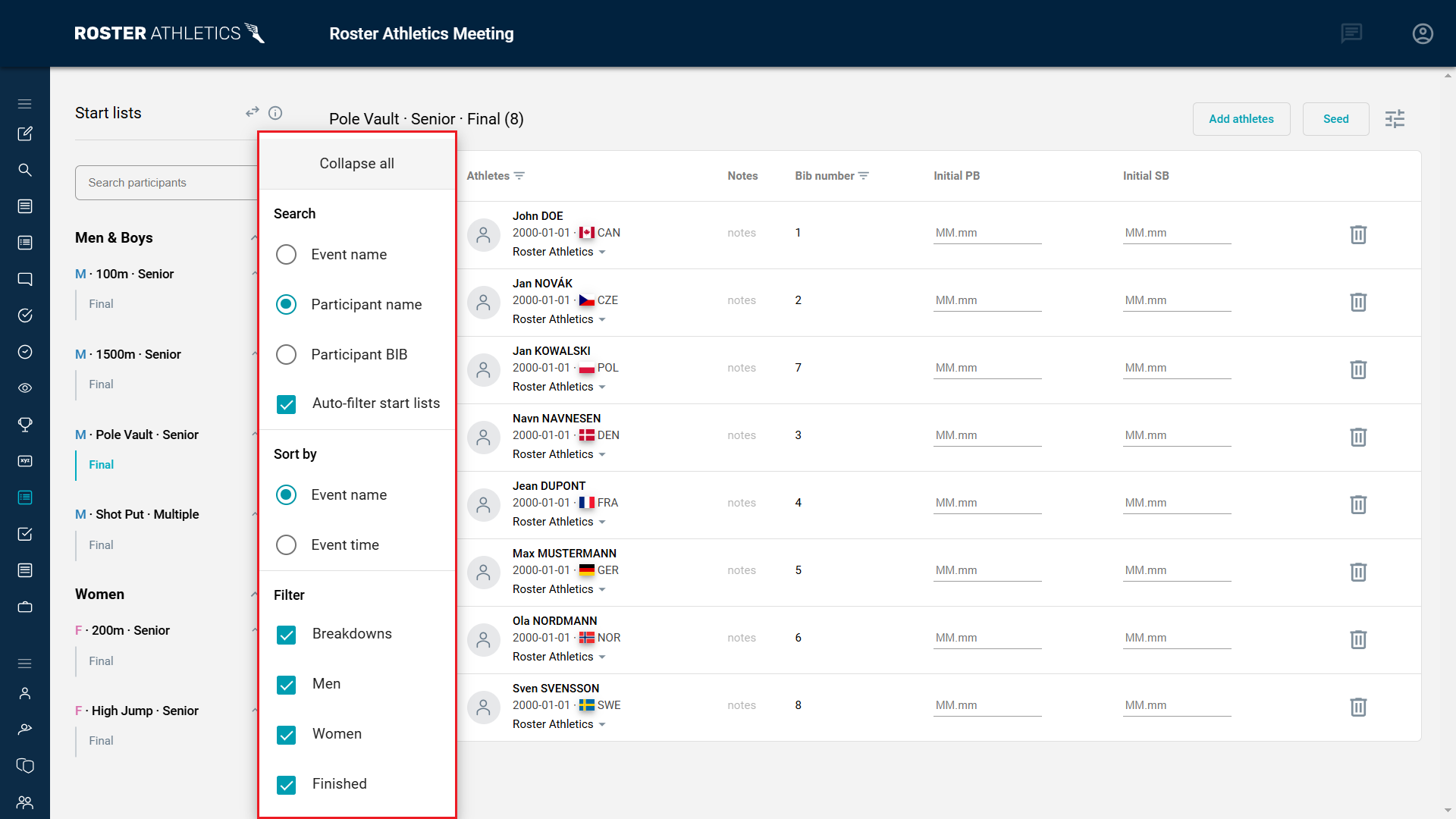
You can also search for participants directly on the start list by clicking Athletes and entering the participant's name. The same option is available for Bib number.
Adding heights
Set the opening height in the Height field by editing the default value. You can add the following heights by clicking the plus icon on the far right-hand side.
When adding a new height, the increase in height will be the difference between the two previous heights. Each height can always be edited.

You can add height values without punctuation if the Auto-format results option is enabled.
Adding results and places
You can type or select the result status in the columns under each height, and Places will be calculated automatically. Alternatively, you can add attempts and places manually if the Calculate places option is disabled under Automatic calculations.
Enabling or disabling the automatic calculations applies to all groups of a given event stage (including the summary group).
Type or select o for a valid attempt. When an attempt is not valid, type or select the x, - or r status in the attempt field.
- o → a valid attempt (it can also be xo or xxo status)
- x → a failed attempt (it can also be xx or xxx status)
- - → a passed attempt (it can also be x- or xx- status)
- r → an athlete that has retired from an event (it can also be xr or xxr status)

The best result for each athlete will be marked with two green stars (**) and displayed in the Result column.
Sorting participants
You can change the sorting method to make entering results easier, e.g., when copying them from a scoresheet. Under options, there are two methods: Sort by place and Sort by order.
Records
When entering results, any records set will appear automatically under the results. However, you can change all records manually by disabling Calculate records under Automatic calculations under Options.
Enabling or disabling the automatic calculations applies to all groups of a given event stage.
Status (NM, DQ, DNS)
If an athlete was disqualified (DQ) or did not start (DNS), you will need to change the athlete's Status to the correct one. The NM (no mark) status is set automatically when all attempts are unsuccessful.

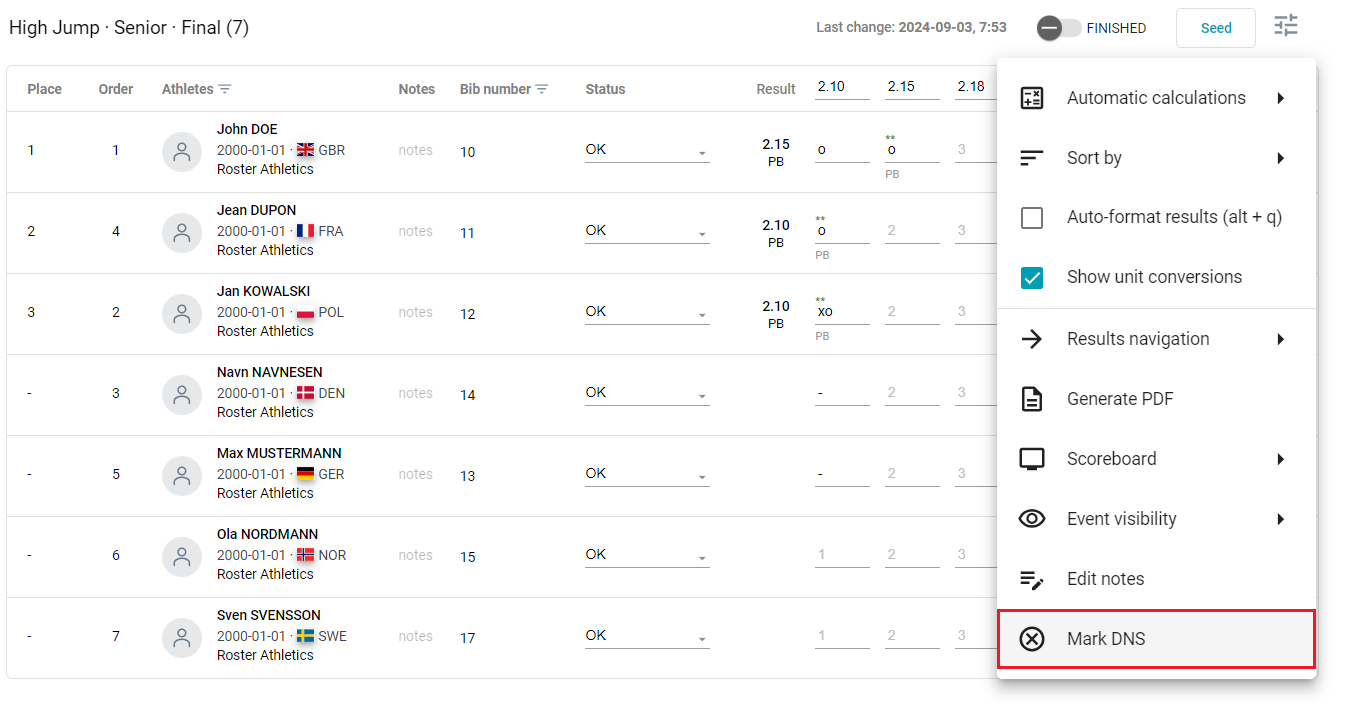
You can collectively mark all participants without attempts as DNS. To do so, select Mark DNS from the options menu.
Notes (athlete)
Click the link under the Notes column if you wish to add a text note for this specific athlete.

You can add Public notes visible in the Roster Athletics app, the Meet Mgmt app, the public website with start lists and results (https://meets.rosterathletics.com/), and CSV and PDF files (start lists, results and scoresheet). You can use this field to add information about Yellow Card (YC), Second Yellow Card (YRC), Red Card (RC) and more.
You can also add Internal notes visible ONLY in the web admin and the Meet Mgmt app for other users who have permission to access the competition.
Notes can be as long as needed, but they may be trimmed in some views. Notes are visible and can be added/edited on start lists and results.
Marking an event as finished
After adding all results, click on the FINISHED trigger. The event will be marked by a checkmark in the Roster Athletics mobile app and the Roster website. This will also trigger any individual or team competition points calculations for this event if the competitions are enabled, and update athletes' records in their profiles.

Results are marked by two timestamps for (i) the last entered result (Last change), and (ii) when the event is marked finished (Marked finished). This information can be used to determine a potential deadline for a protest. The timestamp occurs when the information is made public (i.e., saved on the server), not when it is entered in offline mode in the Meet Mgmt app or typed on a paper scoresheet.
Once you click on the FINISHED trigger, you cannot undo this step, but you can still edit all the results.
Tip: When entering multiple results
If entering results for multiple athletes and/or multiple heights at once, the TAB key can be used to quickly navigate to the neighbouring field without needing to move the mouse.
The TAB button can be set to move either up and down (vertically) or left and right (horizontally), depending on your preference. This direction is set by selecting the Results navigation option from the upper-right-hand settings menu, then choosing either Left-right or Top-bottom.

Internal notes
As a user responsible for entering results, you can add a note to the event results, e.g. if you want to have internal information for the primary judge or the organiser. Select Edit notes from the options menu to add or edit a note.

If the event/group has a note, you will find an icon next to the event name in the upper-left header and in the list of events.
These notes will not be publicly visible to athletes, users of the Roster Athletics app, or the public competitions website with results. Only users with permission to read or edit the competition can see them.