
Organisers of competitions on the Roster platform can enable participant self-check-in via the Roster Athletics mobile app. This guide describes how to link an athlete profile to your account and use it to check in to a competition.
This guide applies to Roster Athletics app version 4.0 and later. If you have an older version, please update the app before continuing.This guide is divided into the following sections:
How to create an athlete profile for check-in?
To check in, you first need a Roster Athletics account. You can create one in the Roster Athletics mobile app or at meets.rosterathletics.com. Select the section below that applies to your situation.
I don't have a Roster account
If you do not have a Roster account, create one by visiting https://meets.rosterathletics.com/public/signup and providing the required information. Please see the Participants: Creating and managing your account user guide to find more details.
After accepting the Platform Terms and Conditions, log in and follow the steps in the next section to create an athlete profile.
I have an account, but not an athlete profile
If you already have a Roster account, go to the web registration portal at https://meets.rosterathletics.com/ and log in to your account. Once logged in, go to the Account → Athletes & relays and click Add athlete/relay, then select Add athlete.

If you are creating a profile for yourself, click Myself to automatically pre-fill your details. Enter the First name, Last name, Date of birth, Gender, Country, and Club/school — all fields are mandatory.
To create a profile for another athlete you are managing, follow the same steps, but do not click Myself.
For more information, see the Participants: Creating and managing your account guide.
If your entry has already been added by another account (coach, school, federation, etc.), the athlete profile you've just created will be verified with the existing athlete on the start list. The verifying process is handled by Roster Athletics and may take up to 48 hours.I have an account and an athlete profile
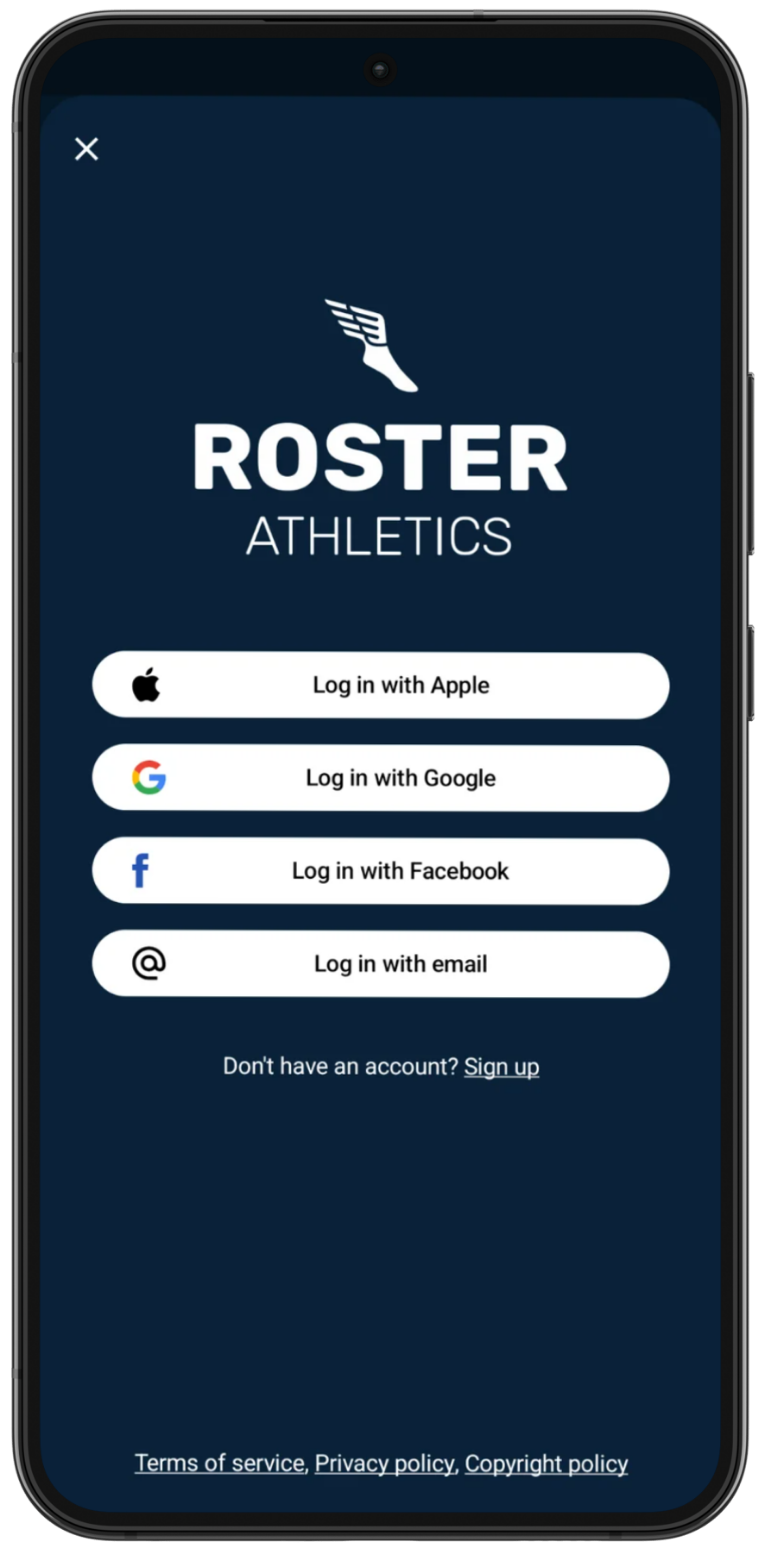
If you already have an account with an athlete profile, you can open and log in to the Roster Athletics app. Make sure to use the same account you used in the registration portal. The app is available on the iOS App Store for Apple iPhone and iPad devices, and on Google Play for Android devices. Please see the Roster Athletics Consumer App User Guide for more information about the app.
 |  |  |
How to check in on the Roster Athletics app?
Athlete check-in view
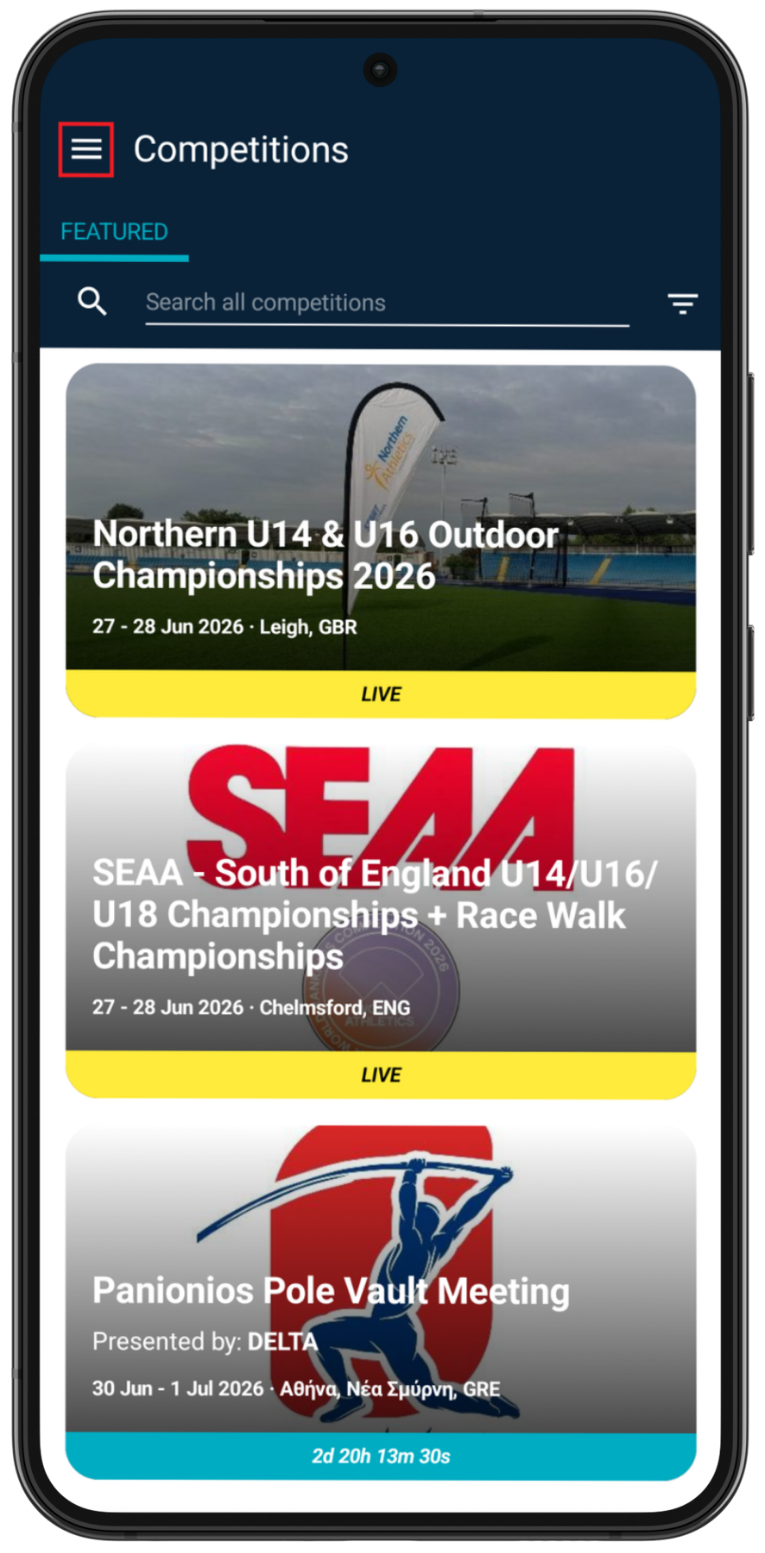
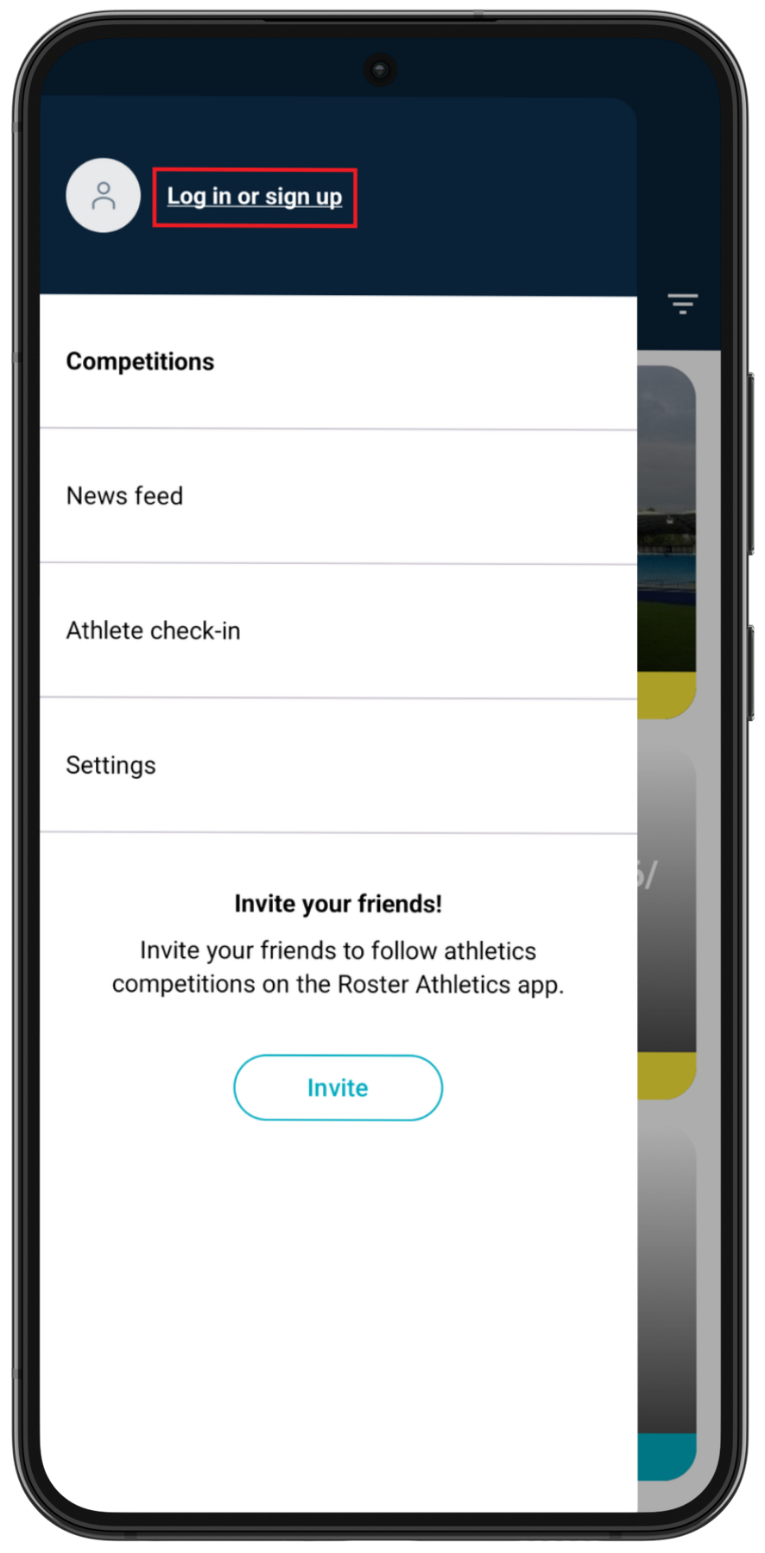
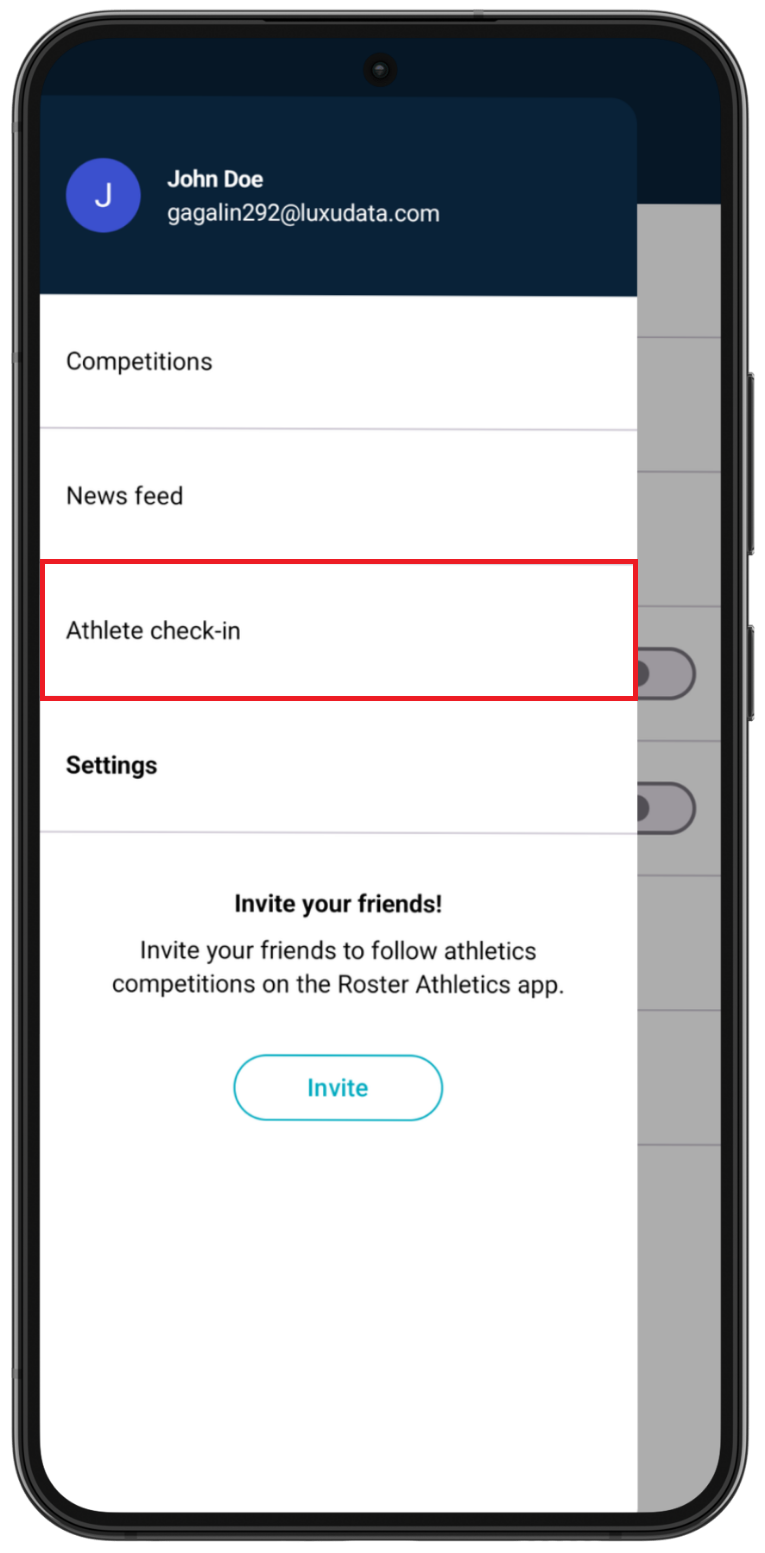
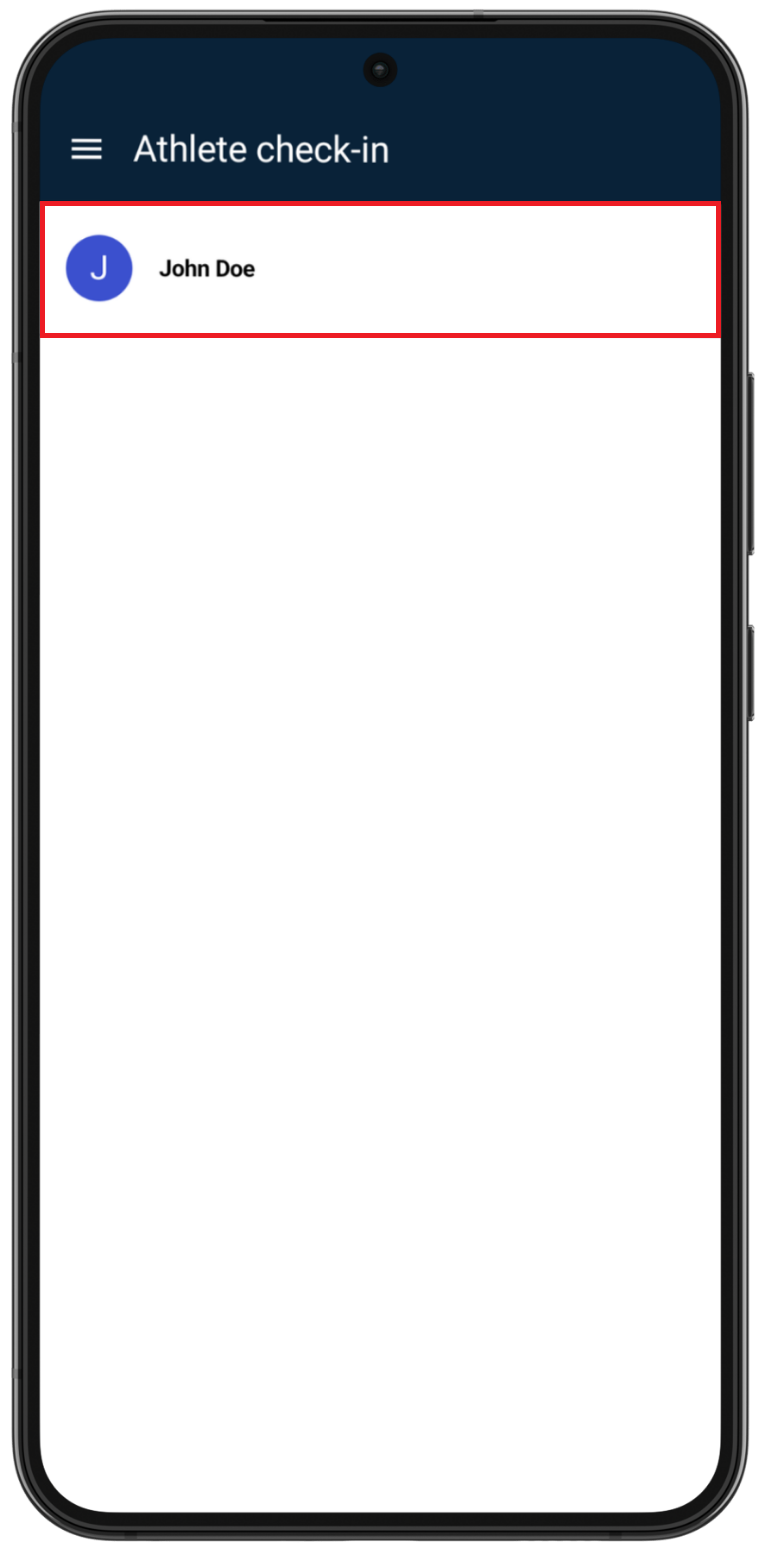
After logging in to your account on the main Competitions screen, tap the menu icon in the upper-left corner and select Athlete check-in.
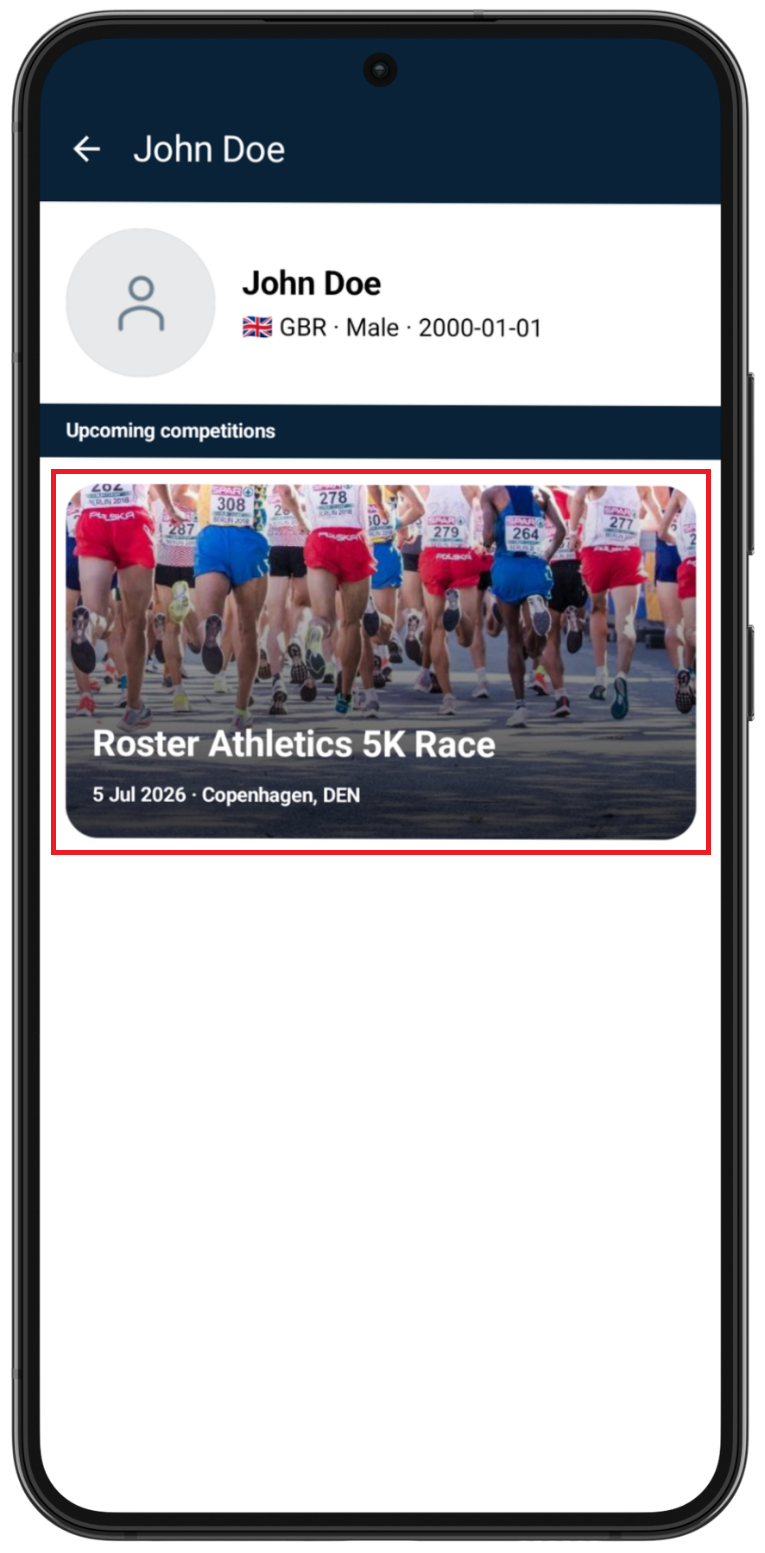
In Athlete check-in, tap an athlete's name to open their profile. You will see a list of upcoming competitions where this athlete is on the start list, and check-in is open. Note that the competition status must be set to Open for check-in to be available.
If you do not see the competition in which you want to confirm your participation, there are two explanations:
1. The check-in option has not been enabled by the organiser yet.
2. Your athlete profile has not yet been verified with the profile created by the organiser or another user who registered you for the competition. The verifying process is handled by Roster Athletics and may take up to 48 hours
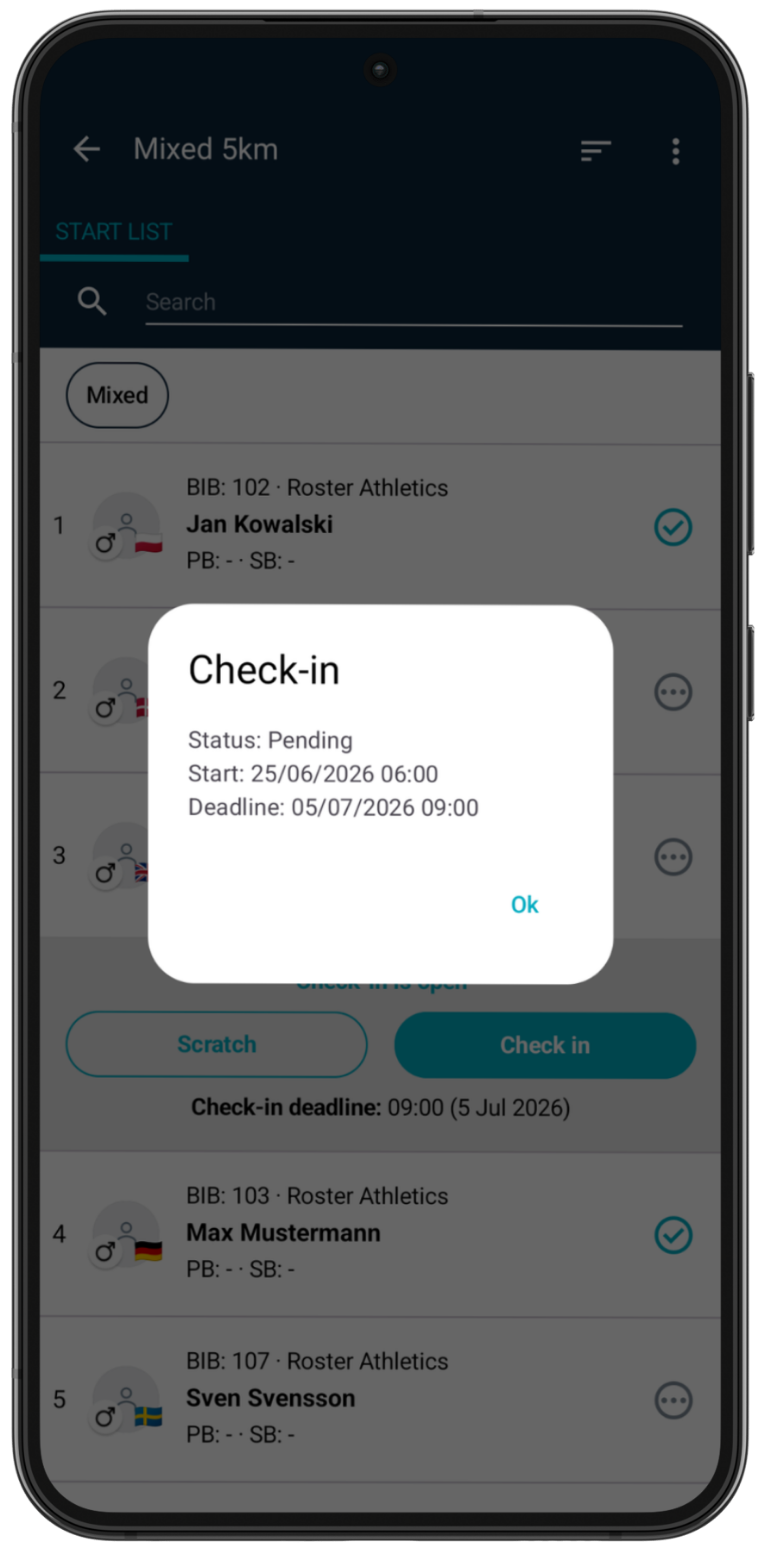
Open the competition to see all events with your athlete on the start list, along with the check-in start, deadline and status.
 |  |  |
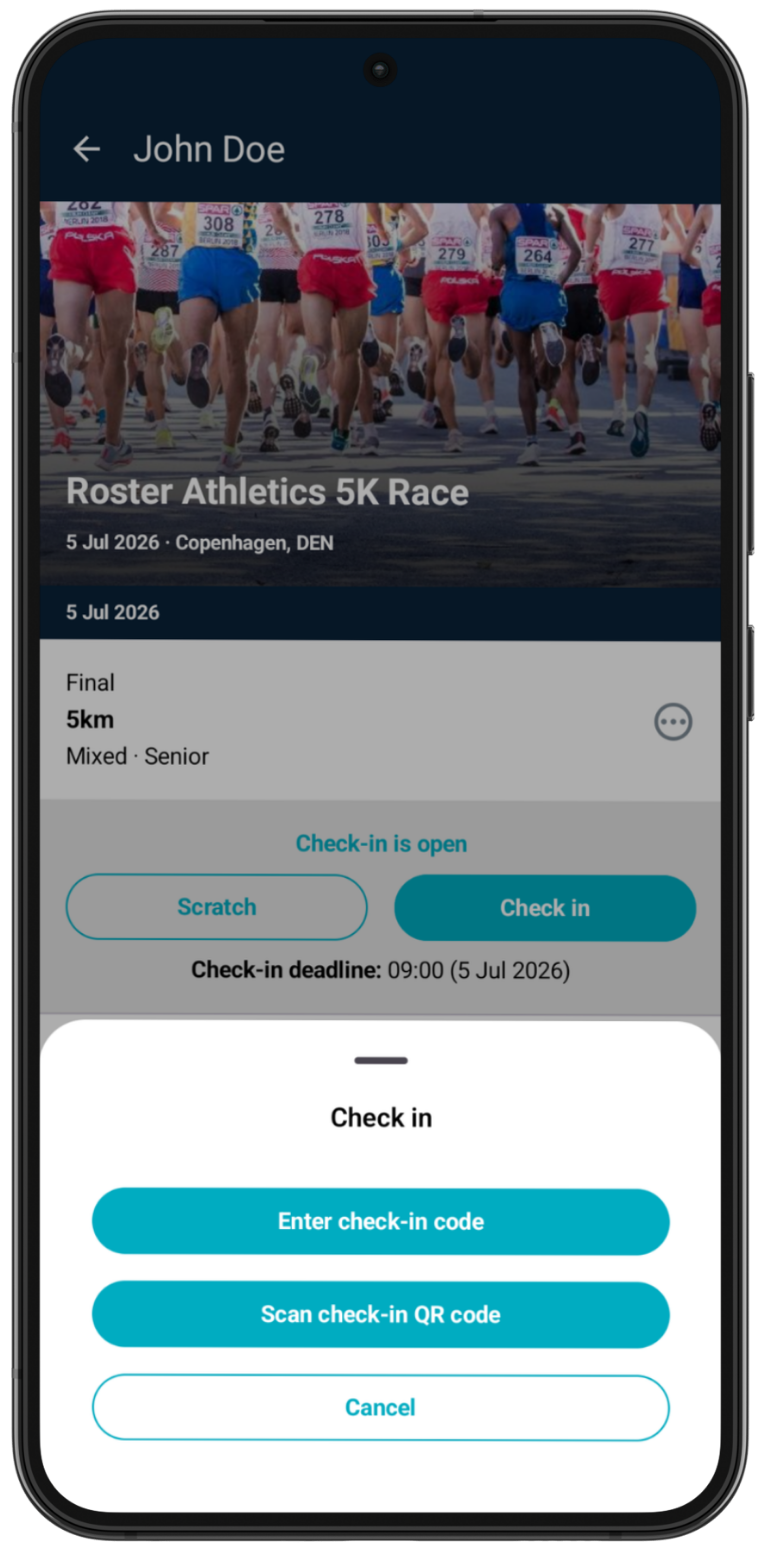
If the check-in is open, you can click the event name and select:
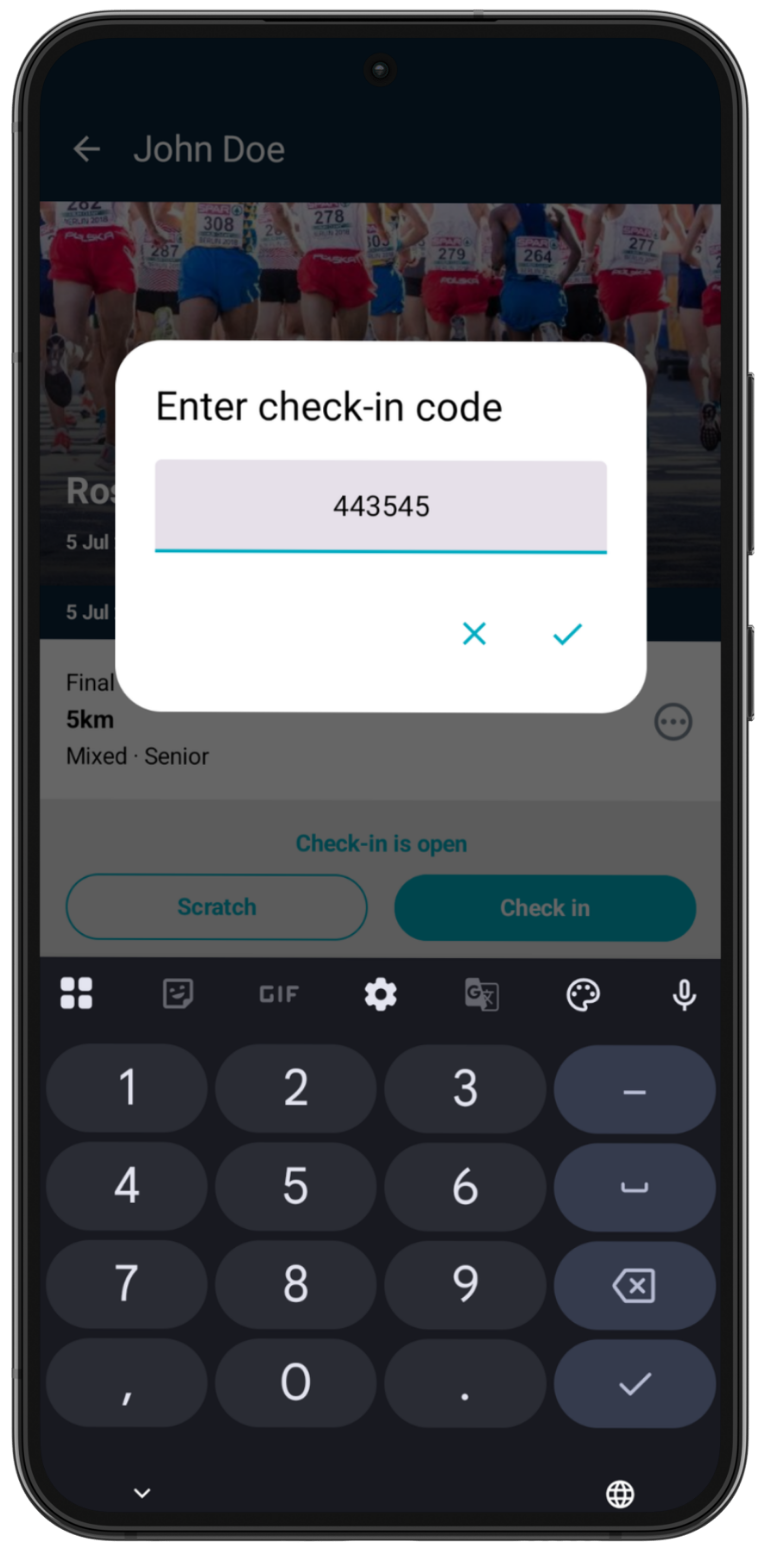
- Check-in: confirm your participation in the event. If additional verification is enabled, you can check in by:
- Entering check-in code
- Scanning the check-in QR code
- Scratch: select if you or the athlete will not compete in the event.
If the organiser has enabled verification, they will provide a numerical code or QR code for the competition.
 |  | 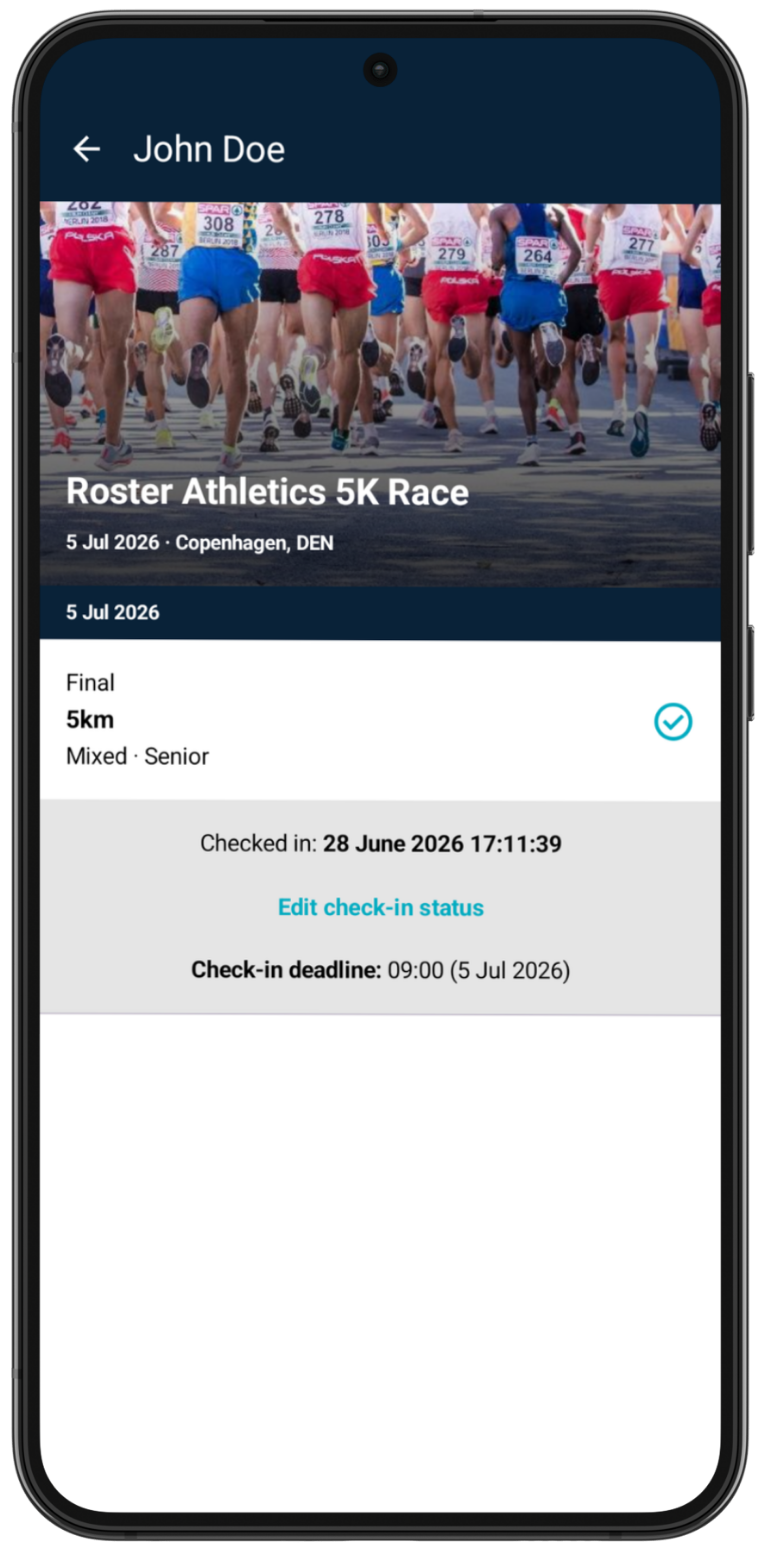 |
Once you check in or scratch, the status change date and time will be displayed, along with the corresponding status.
To change your status, tap Edit check-in status. You can update your status until the check-in deadline.
When your status changes, you will receive confirmation by email.
A scratch in the first child event of a combined event also causes a scratch in the parent event. A scratch in another child event will change the parent event status to DNF.
Checking in on the start list
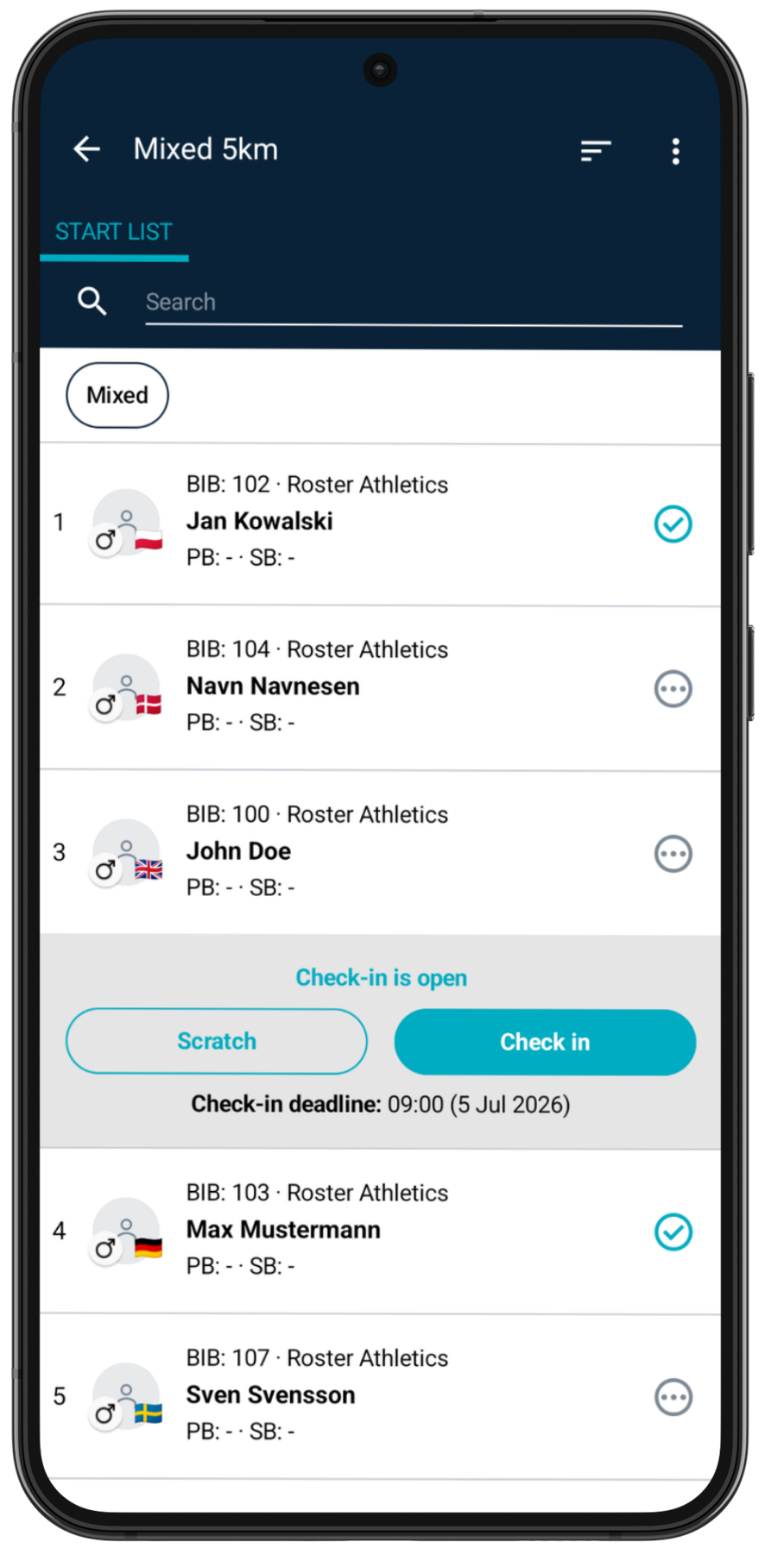
You can also check in from the event start list. To do so, find the competition, open the event, and locate the athlete's name on the start list. If check-in is open, check in or scratch as described above.
If the organiser has chosen not to display scratched athletes, a scratch will automatically remove the athlete from the start list. In this case, to change the status of a scratched athlete, go to Athlete check-in in the menu.
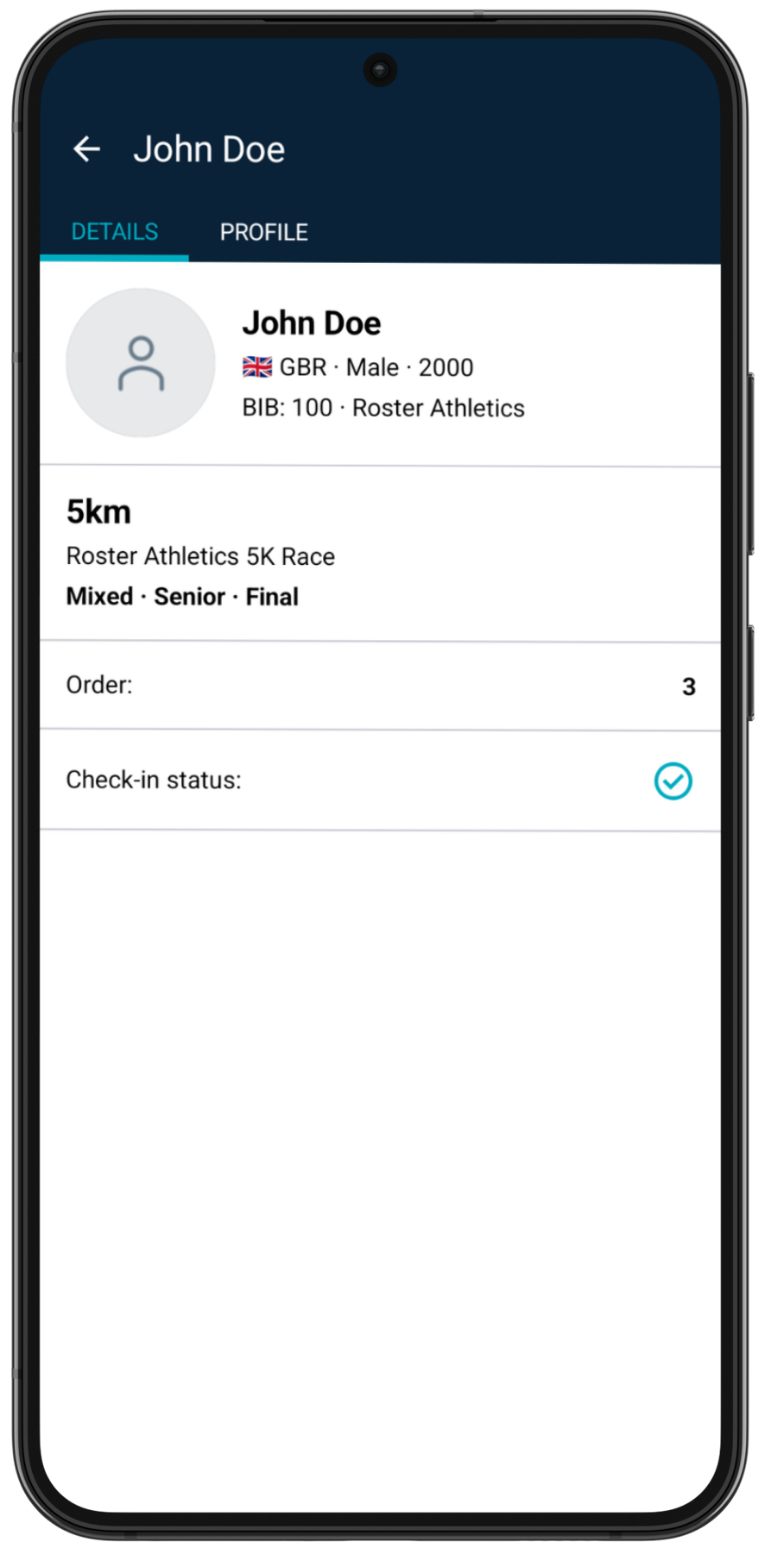
You can check each athlete's check-in status on the start list. Tap the athlete's name to view their profile and check-in status.
 |  |  |