
This guide covers all fields and options available when creating and configuring a road, cross-country, trail or any other non-track race in Roster Athletics.
To get started, go to the left-hand menu and select either Create directly or Browse and Create. In the window that opens, select the Road race competition profile. For more information on profiles, see the Select a competition profile guide.
You can also add a competition by copying selected elements from existing ones. Learn more from the guide: Copying a competition.
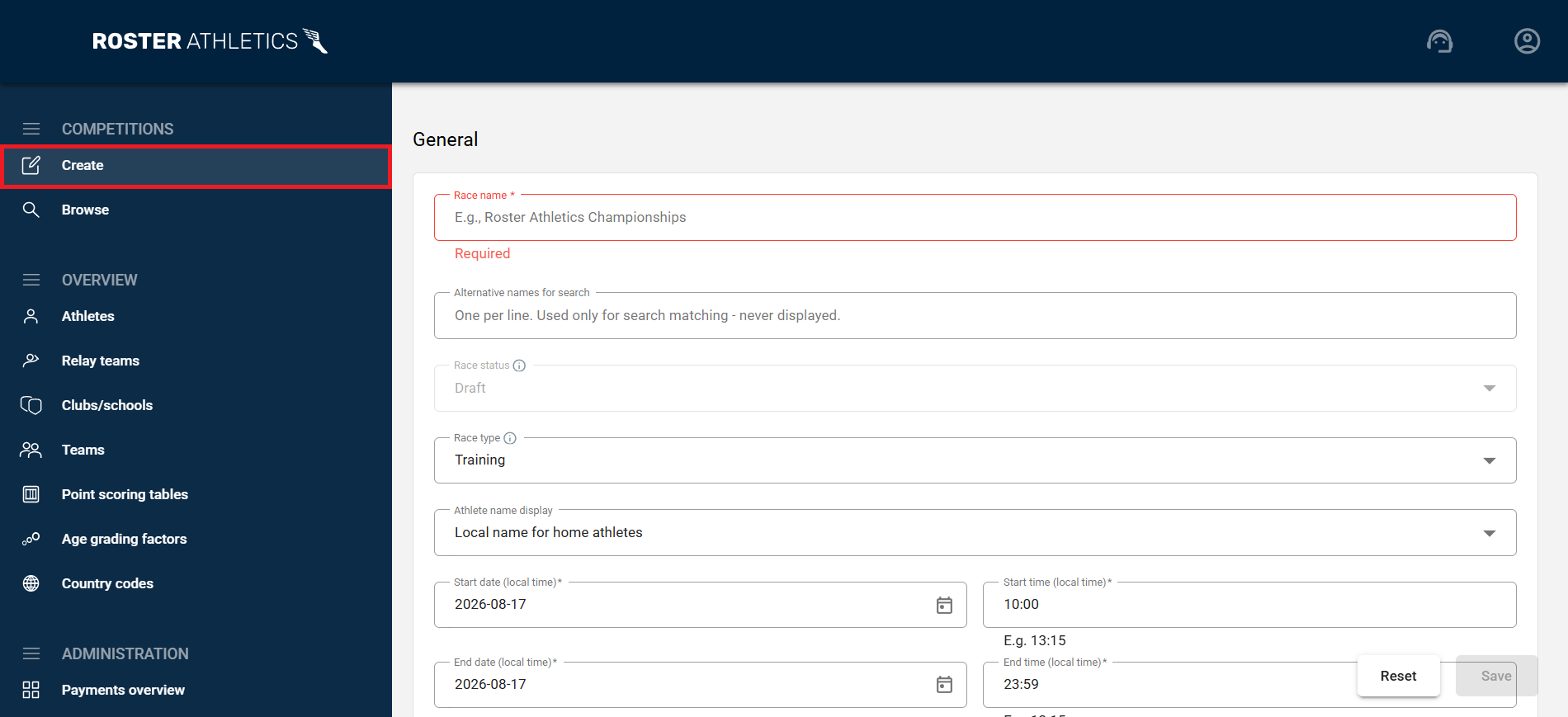
When creating a new competition, you must complete the required fields under the General, Location, and Country-specific options tabs at a minimum.
This guide is divided into two main sections:
Adding a race
Race name
Enter the name of the competition under Race name.
Under Alternative names for search, you can also enter alternative names for the competition. These names are used only for search matching and are not displayed anywhere else. To add more alternative names, enter each one on a separate row — press Enter at the end of a row to start a new one.
Use alternative names, for example, to add an international name or a local-language name for a competition.
Race type
Choose the Race type that specifies the competition level (National, Regional, etc.).
Choose Testing if you want to explore the platform without creating a real competition. The Adding a Test Competition guide provides more information on this.
If you choose both the School option and the United States as a country, you will see an additional Grade option for athletes (on start lists, results, in PDF files, and in the app).

You cannot change the Race type field after selecting School or Testing and saving.
Race status
Set the Race status (this field can be changed after saving the competition) to control the competition's visibility in the Roster app and on the public website. The default setting when creating a competition is Draft, meaning it is not yet visible to participants or fans. You should only change this field from Draft to another status when the competition is ready to be published (i.e., publicly available on the Roster Athletics app and Roster website).
You cannot change this field back to Draft after changing the status to Scheduled, Open, Finished or Cancelled.
- Draft status means the competition is NOT visible in the app or on the public website. To share the competition with only a few selected users, you can hide it from search results using the Visibility in search results option under Extra.
- Scheduled status means the competition is visible in the app and website, but most of the competition data (e.g., start lists, results, feed, etc.) cannot be viewed publicly.
- Open status means all users can find and see the competition and all competition data.
- Finished status means the competition is still visible in the app and on the public website.
- Cancelled status means the competition is visible in the app and on the public website, with the proper annotation. Participants can no longer register.
Race date
Enter the Race start (local date and time) and Race end (local date and time).

You can change the date and time format in the user settings. See more information in the User settings guide.
Athlete name display
In the Athlete name display field, decide how the athletes' names should be displayed in all places related to the competition (e.g. start lists and results).
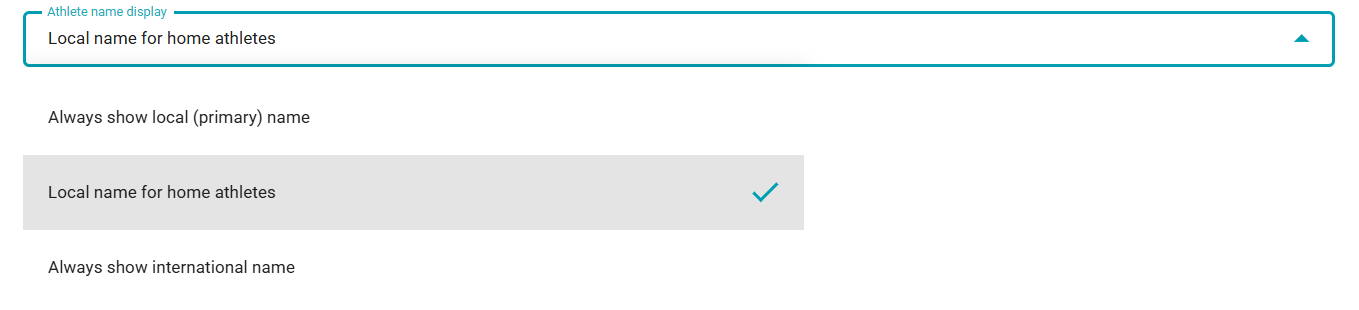
If an athlete does not have an international name added, the local name will always be displayed.
Location
Enter the name of the City where the race is taking place.

Select the Country where the race is taking place.

After selecting the country, the proper age groups and implements table for this country will be selected (if it exists).
If a competition is in the United States, select the State where it will take place.
The Time-zone sets automatically; if correct, you can now click the blue Create button to create a competition. If the time zone is incorrect, double-check the country and city, state, or postcode fields.
Age groups and implements
Choose the desired Age groups and implements table (or use the default General setting).

You cannot change the Age groups and implements field after the competition is created, so please ensure this is set correctly before saving.
The Country-specific options section allows you to enable the appropriate age groups for your competition, points scoring tables (for points-scoring team competitions), and age grading factors based on your country or a specific type of organisation (e.g. World Athletics). Otherwise, a general default setting will be applied to the implement mapping, and all standard age groups will be available for your competition.
- Age group and implement field - default will be the General setting. If desired, choose your specific country to use the implement table associated with that country (or a specific organisation such as World Athletics). You cannot change this field once the competition is created. This field is critical for automatically applying the appropriate points tables and age-grading factors for your competition, where appropriate.
- Default age group - the age group that will be selected automatically after adding a new event. You can change the age group for each event in the events Schedule. This field can be changed at any time.
- Age group profiles - sets the available age groups for your competition. This field can be changed at any time.
- Standard/Professional for the typical set of age groups.
- Extended for any special age groupings associated with your country or specific organisation.
- Road race for age groups specific to mass road races.
- Age group verification - select:
- Strict if athletes should compete only in their own age group.
- Regular if athletes should compete in their age group or an older age group for youth age groups; their own age group or in a younger age group for masters age groups.
- None if athletes can compete in any age group.
Important: The Strict verification does not apply to the Senior and Multiple age groups. Anyone can enter to compete in these groups.
- Licence verification (relevant only if the country is set to England, Wales, the United Kingdom, Lithuania or Nigeria). Select:
- Strict if athletes should have a valid licence number.
- Allow foreign (licence is required for home athletes) if athletes from the selected country (England, Wales, Lithuania, or Nigeria) must have a valid active licence to register. Athletes from other countries may register without one.
- None if no licence requirement is in place.
Licence checks do not apply to athletes under the following ages on the day of competition:
 • U11 — England, Wales, or the United Kingdom
 • U14 — Lithuania
• U12 — Nigeria- Selecting age groups - the age groups you select here will be the groups you can choose from in the Schedule when changing an age group for an event and assigning an athlete to an age group on the Start list for a multi-age group event. Check the List of age groups guide for more details about all available age groups.
Additional race information fields
General
Under the General tab, you can add/choose additional information about the race.
- Team competitions - enable team competitions if your race includes a team competition(s). See more information in the Set up a team competition guide.
- Registration - enables use of the Roster registration system. See more information in the Registration guides.
- Check-in - enable this feature to verify entries before the event starts. See more information in the Check-in guide.
- About - any information about the competition that will be visible on the public website. This may include text, links, images, videos, and more.
- Image - you can add a competition photo visible in the app and public website as a cover photo for your competition. If you do not add an image, the system will display a random photo from the Roster Athletics photo database. We recommend images of 1280×850 pixels. Avoid placing logos or important elements close to the edges, as they may be cropped in the app or website.
Contact
Under the Contact tab, you can add or choose the following additional information:
- Contact email - organiser’s email, which is visible to participants and as race information.
- Contact phone - organiser’s phone number, which is visible to participants and as race information.
Location
Under the Location tab, you can add or choose the following additional information:
- Venue name - the name of the place where the race is taking place.
- Street address - the street address of the location where the race is taking place.
- Postcode - a postal code or zip code of the location where the race is taking place.
Extra
Under the Extra tab, you can set the following fields:
- HLS stream URL - If available, add an HLS format video stream of your competition. See more in the Add HLS live-streaming guide.
- Birthday visibility - Full, None, Year only (default).
- Feed mode - choose the state of using the feed: Enabled (default), Restricted (only organisers can post from the web admin portal, no consumer/fan posting), Disabled (no feed).
Note: when disabling or re-enabling the feed, the current Android consumer app implementation requires exiting and re-entering the app for the changes to take effect. For this reason, we recommend setting the feed mode before the competition starts, especially when a large number of users are expected to use the app.- Visibility in search results - decide if your competition should be visible in search results in the Roster Athletics app and public website with the competition list. You can select Exclude, for example, when creating a test competition. You will still be able to use all the features (including registration), but you will have to provide the Public link (you can find it in the General tab) manually to those interested.
- Scratched visibility - decide if athletes with SCR (scratched) status should be visible in public materials such as PDF files, scoreboards and public website results.
- Enable out-of-competition participants - decide whether to allow marking participants as out of competition. Marked participants will not be assigned a place, won't be automatically advanced, won't count in team competitions, etc. Enabling this option will add an OOC column to the start list.
Statistics
Under the Statistics tab, you can load and see stats related to the race:
- The number of starts (total, separated by gender, for athletes and relay teams),
- The unique number of athletes (total, separated by gender, including/excluding relay members),
- Stats for clubs and teams (if team competition is enabled).
For other features on the Details page, please see the following user guides for more information:
- Adding a sponsor
- Setting up timing system integration
- Permission to edit a competition
- Automatic results reporting to statistics services - you can enable this in the General section if your federation/organisation has set this up with Roster. See the guide for more details.
- Team competition
- Check-in
- Registration