
This guide covers how to add multiple athletes at once using the Import CSV tool, located on the left-hand side of the Details page. You can do this instead of adding one athlete at a time.
Important: The import CSV feature cannot be used if registration is enabled.The guide is divided into the following sections:
- Creating the CSV File
- Column Reference
- Importing the CSV File
- Resolving Conflicts
- Relay Events
- Event Codes (EventCode)
- Age Group Codes (AgeGroup)
- School Grade Codes (SchoolGrade)
- Opening a CSV File in Excel
1. Creating the CSV File
Build your CSV file using a spreadsheet application such as Excel. Each row represents one athlete or relay team entry. The columns are described in the Column reference section below.
Note: Mandatory columns are marked “Yes” in the Required column of the reference table.Formatting rules
- Athletes names: Capitalise the first letter only in first, middle, and last names, except where the name itself requires otherwise. Example: John Joseph McDonald.
- Date of birth: Use the format YYYY-MM-DD. You can use Excel’s cell formatting to ensure the correct format.
- Do not use placeholder dates: If you only know an athlete’s birth year, leave DateOfBirth blank and use YearOfBirth instead. Do not enter a fake date such as 1990-01-01.
- Personal and season bests: Use . as the decimal separator for distances and times (e.g. 9.58). Use : between hours, minutes, and seconds.
- Avoid special characters: Do not use commas (,), semicolons (;), or quotation marks (") anywhere in the file, as these will break the CSV format and cause errors.
- Column headers are case-sensitive: Do not modify these header names. Both capitalisation and spelling must match exactly; for example, FirstName is not the same as firstname or Firstname.
- Capital I, not lowercase l: In column names such as EntryId, StartListId, RelayId, and TilastopajaId, the "Id" suffix ends with a capital I (as in "Ivan"), not a lowercase l (as in "letter"). These can look identical depending on the font.
- File encoding: Save the file as UTF-8 CSV.
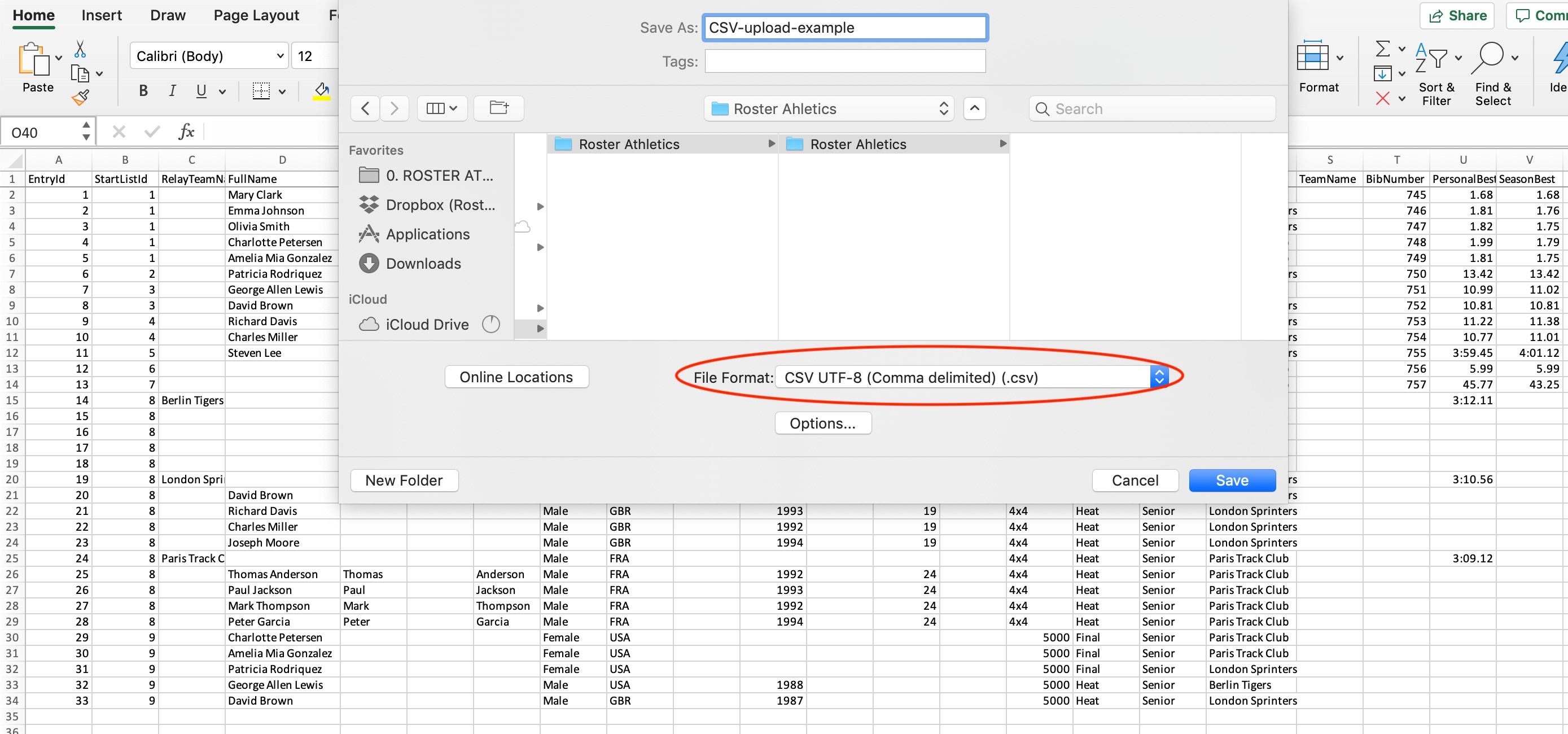
Note: An example CSV file and an Excel template are attached at the bottom of this guide. If you use the PZLA or HyTek export functionality, use the CSV file directly from those systems. If a HyTek file fails to import, check that it uses semicolon-delimited entries.
2. Column Reference
The table below lists all supported columns. Columns marked Yes in the Required column must be present for the import to succeed.
Column name | Required | Description | Notes |
EntryId | Yes | Sequential number for each athlete or relay team entry in the competition. | See the example file for the numbering pattern. |
StartListId | Groups entries into the same start list event. Assign a unique number per event list. | Required for mixed start lists and events with multiple age groups or relays. | |
RelayTeamName | Name of the relay team. | ||
FirstName | Yes | Athlete’s first name. | Capitalise first letter only. Example: John |
MiddleName | Athlete’s middle name. | Capitalise first letter only. | |
LastName | Yes | Athlete’s last name. | Capitalise first letter only. Example: McDonald |
FirstNameInt | Athlete’s international first name. | Used when the name differs from the local version. | |
MiddleNameInt | Athlete’s international middle name. | ||
LastNameInt | Athlete’s international last name. | ||
Gender | Yes | Athlete’s or Relay's gender. | Accepted values: Male, Female or Mixed (only for relays). See relay sections for mixed events. |
LicenseType | Federation name for licence verification. | Currently relevant for World Athletics, World Para Athletics, and selected national federations. See accepted values in the guide. | |
LicenseNumber | Athlete’s licence number. | Currently relevant for World Athletics, World Para Athletics, and selected national federations. | |
CountryCode | Yes | Three-letter country code (e.g. USA, FRA, CHN). | Full list available at admin.rosterathletics.com/admin/country-codes (requires platform access). |
SchoolGrade | Athlete’s school grade. | For US school meets only. See grade codes below. | |
DateOfBirth | Athlete’s date of birth. | Format must be YYYY-MM-DD. If only the birth year is known, leave this blank and use YearOfBirth instead. Do not enter a placeholder date such as YYYY-01-01. | |
YearOfBirth | Athlete’s birth year (four digits, e.g. 1995). | Use when the full date of birth is unknown. | |
TilastopajaId | Athlete’s ID in the Tilastopaja database. | ||
RelayId | Links individual relay runners to their team. | Set this to the EntryId of the relay team. Relay members must appear after the relay team row in the file. | |
EventStart | Start time of the event. | Format: YYYY-MM-DD HH:MM:SS (e.g. 2020-02-14 15:55:00). Can be left blank and set after import. See note about existing schedules. | |
EventCode | Yes | Event code or full event name. | See the Event Codes section and the List of Events guide. |
EventStage | Yes | Stage of the event. | Accepted values: Qualification, Preliminary, Heat, SemiFinal, Final. Can be changed after import. |
AgeGroup | Yes | Athlete’s age group. | Use Auto to assign based on date of birth or year of birth. See Age Group Codes section. |
ClubName | Name of the club or school the athlete represents. | ||
TeamName | Name of the team (for team competitions). | ||
TeamGender | Gender of the team. | Accepted values: Male, Female, or Mixed. | |
TeamName2 | Second team name. | For competitions with multiple team categories (optional). | |
TeamGender2 | Gender of the second team. | ||
TeamName3 | Third team name. | For competitions with multiple team categories (optional). | |
TeamGender3 | Gender of the third team. | ||
BibNumber | Bib or start number for the athlete. | ||
PersonalBest | Athlete’s personal best result. | Use . as the decimal separator (e.g. 1.85 for field events, 9.58 for track). Use : between hours, minutes, and seconds. | |
SeasonBest | Athlete’s season best result. | Same format as PersonalBest. | |
SeedingResult | Athlete’s seeding result. | ||
Title | Custom title for the event. | When specified, a new event is created with this title, even if another untitled event already exists in the file. |
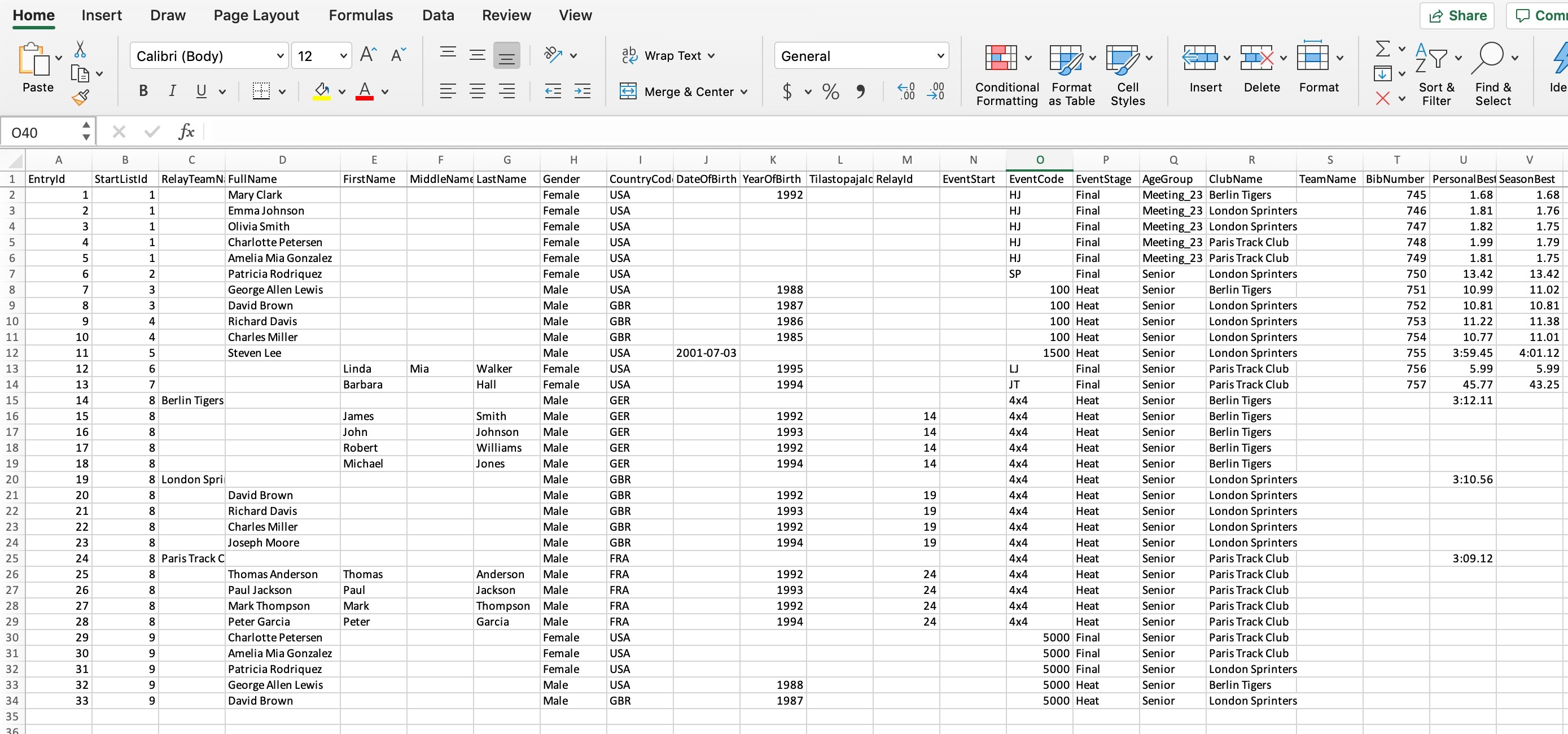
LicenseType accepted values
The following values are accepted for the LicenseType column:
- NorthernIrelandAth — Athletics Northern Ireland
- EnglandWalesAth — England & Wales Athletics
- GreekAth — Greek Athletics
- IcelandicAth — Icelandic Athletic Federation
- LithuaniaAth — Athletics Federation of Lithuania
- NewZealandAth — Athletics New Zealand
- RomaniaAth — Romanian Athletics Federation
- ScotlandAth — Scottish Athletics
- TFRRS — NCAA
- WorldAth — World Athletics
- WAPara — World Para Athletics (SDMS)
3. Importing the CSV File
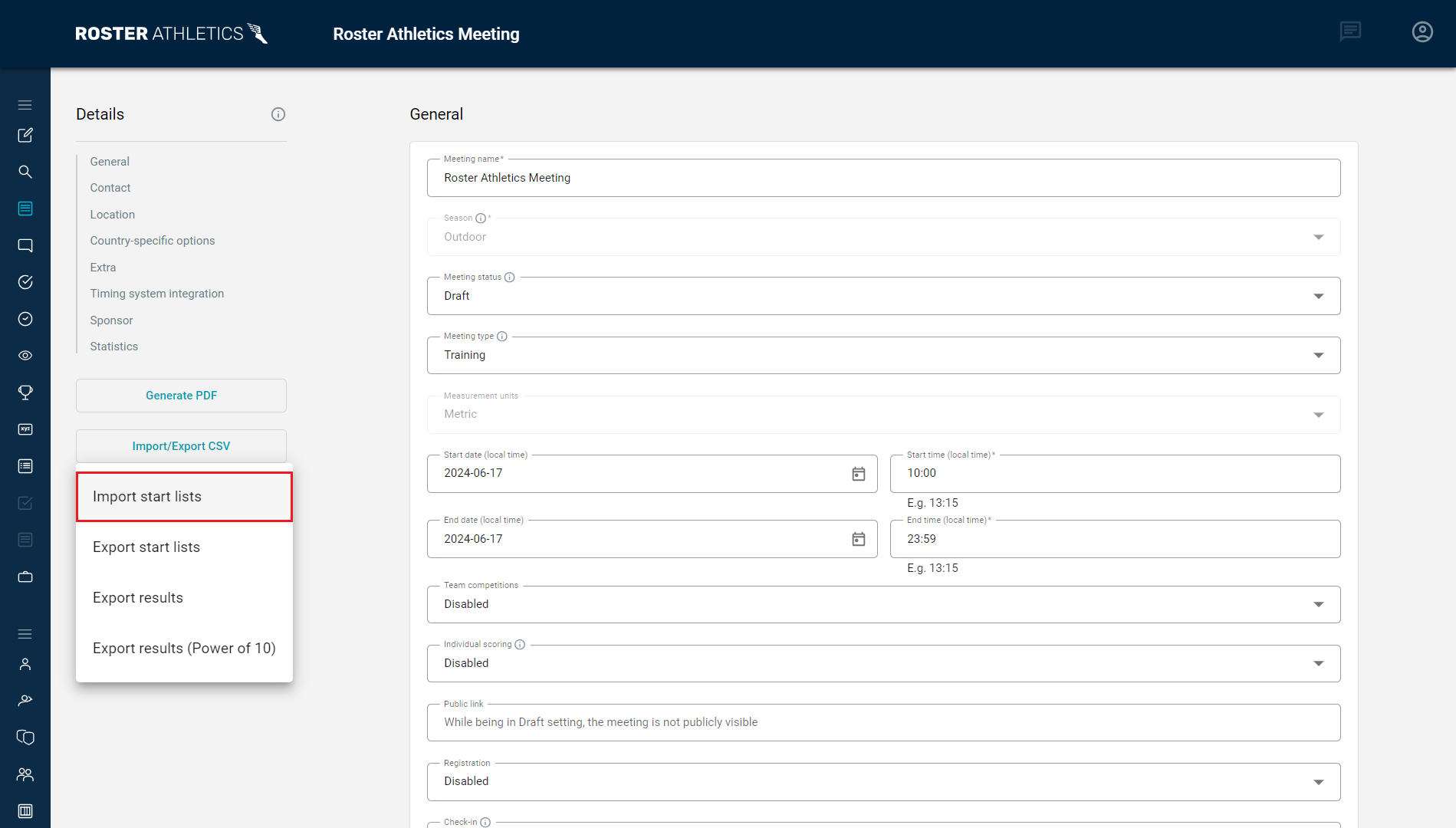
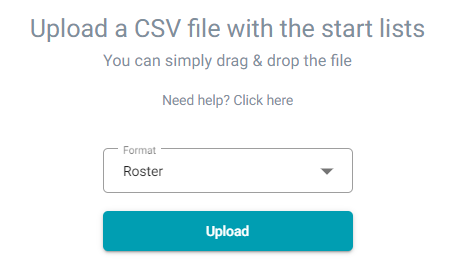
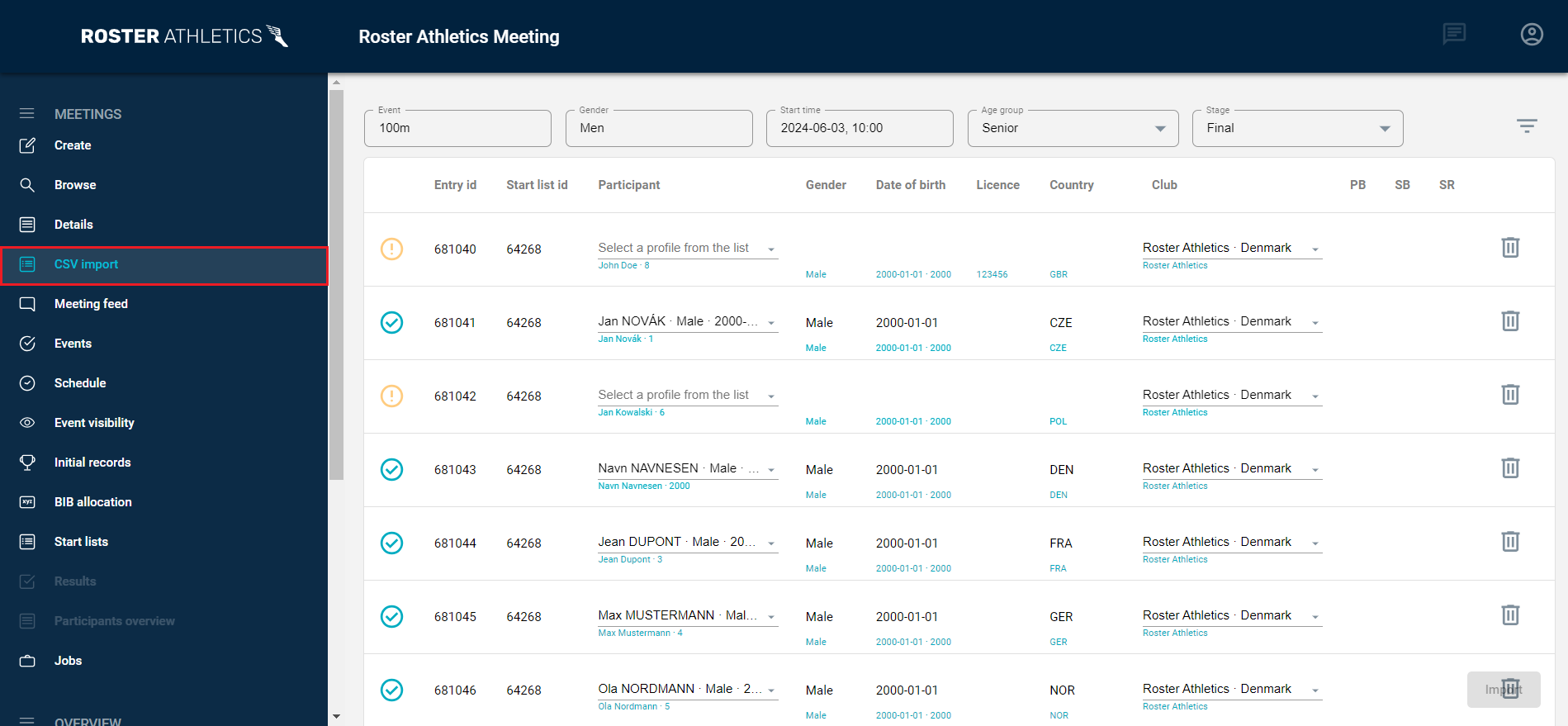
Click the Import start lists button on the Details page, then choose Auto or Roster format. You can also drag and drop the file directly onto the page.
Important: If you have an existing event schedule set in the web admin platform and leave the EventStart field blank in your CSV, the existing schedule will be overwritten with default values. To keep your schedule, either fill in the EventStart column or update the schedule manually after import.Once imported, a CSV Import menu option appears on the far left. This option remains visible until you change competition, upload another file, click Finished, or reload the page.
4. Resolving Conflicts
After import, each athlete or relay entry is marked with a status indicator:
Status | Meaning |
 | Exact match found — the athlete or relay already exists in the Roster Athletics database. |
| No match found — a new profile will be created automatically. |
| Partial match — one or more possible matches found. You must select the correct athlete or relay team. |
| Conflict — action required. Select the correct match, delete duplicated entry, or create a new profile. |


Important: You must resolve all yellow and red conflicts before you can save the start list. The Import button will remain inactive until all conflicts are resolved.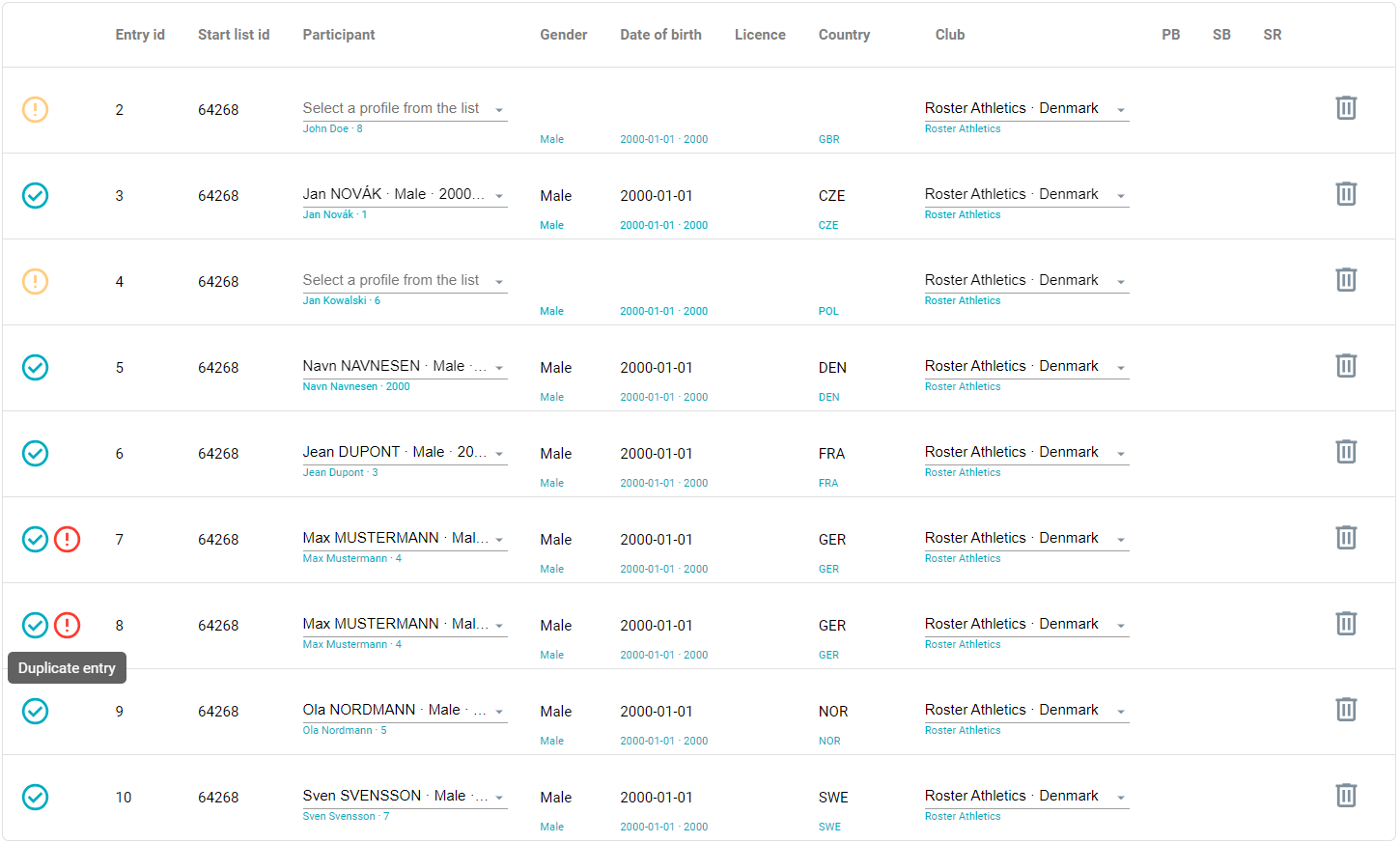
How to resolve a conflict
Click Select a profile from the list next to the flagged entry, then:
- Search & select — search the Roster database to find and link the correct existing profile.
- Create new athlete profile — create a new profile using the data in the CSV file.
- Create relay team profile — create a new relay team profile.
Example: duplicate relay team names
If your CSV contains two relay teams with the same name (e.g. “Roster Relay Team” with entries 1 and 2), but only one team with that name exists in the database, both entries will match the same team — causing a conflict. To resolve this, create two new relay teams with distinct names, such as “Roster Relay Team 1” and “Roster Relay Team 2”.
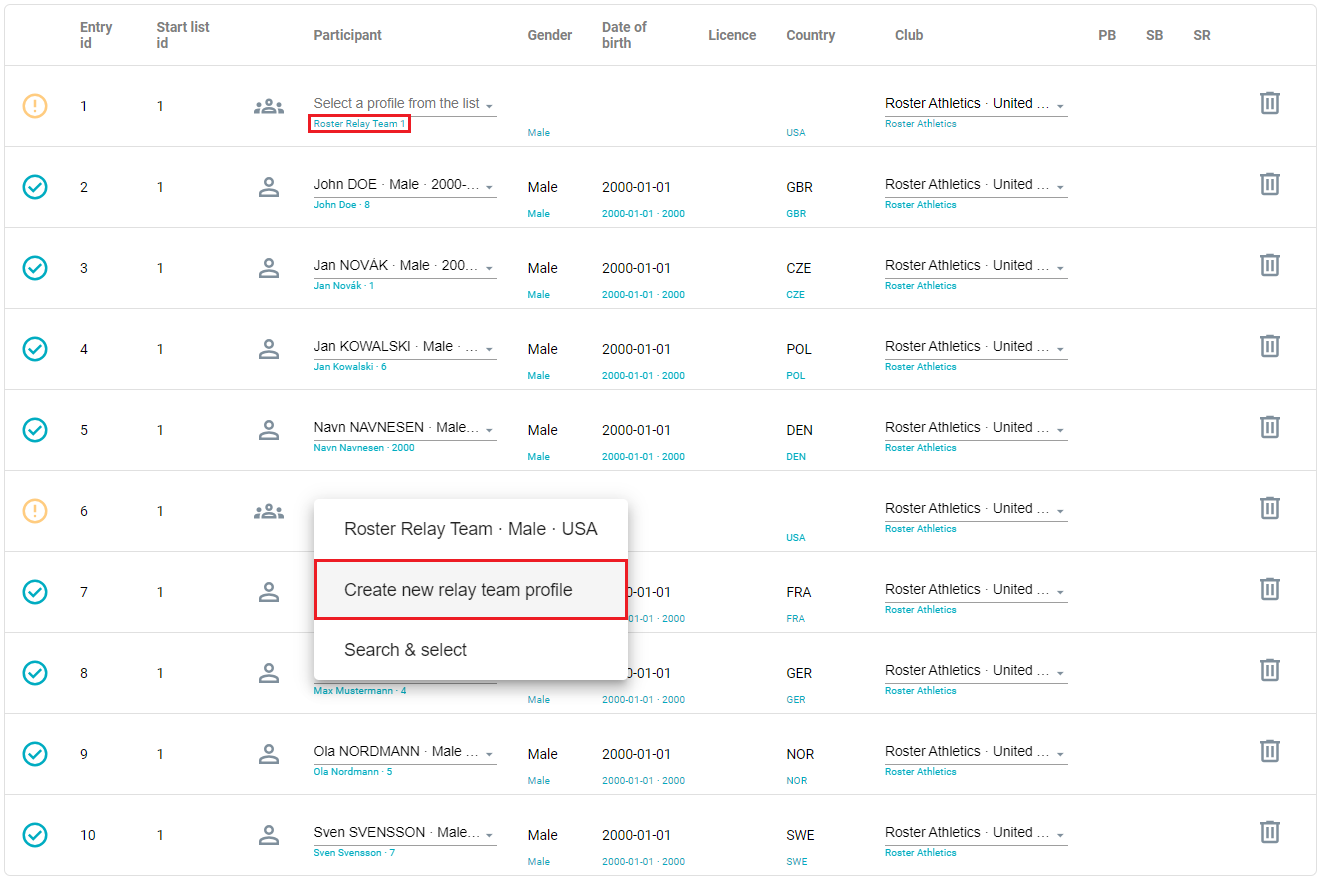
Once all conflicts are resolved, click Import to save the start list, then click Start list to view the result.
5. Relay Events
This section explains how to structure relay entries in the CSV file. Follow the rules relevant to your event type.
Standard relay events
Each relay entry consists of a team definition row followed by individual athlete rows.
- Team row: Set EntryId, StartListId, RelayTeamName, Gender, CountryCode, EventCode, EventStage, AgeGroup, ClubName (if relevant), and TeamName (relevant only if team competition is enabled).
- Athlete rows: Add one row per athlete. Set RelayId to the EntryId value from the relay team row. This links each athlete to their team.
- Athlete rows must follow the team row: Relay members may not appear above the team row in the file.
- Same StartListId: All athlete rows must share the same StartListId as the team row. Relay teams in the same event must share the same StartListId; otherwise, separate events will be created.
Mixed-gender relay: separate male and female teams in one event
If your event has separate male and female teams competing together in the same event, set the same StartListId for all teams. They will all appear in the start list under the same event.
Mixed relay team: male and female athletes on the same team
For events such as 4x400m MIXED TEAM (or any 4x___m MIXED TEAM event) where individual teams include both male and female athletes:
- EventCode: Use 4x400m MIXED TEAM (or the applicable mixed team code).
- Gender for the team row: Set to Mixed.
- Gender for each athlete row: Set to Male or Female as appropriate.
- RelayId: Set as described above for standard relays.
Mixed-gender individual events
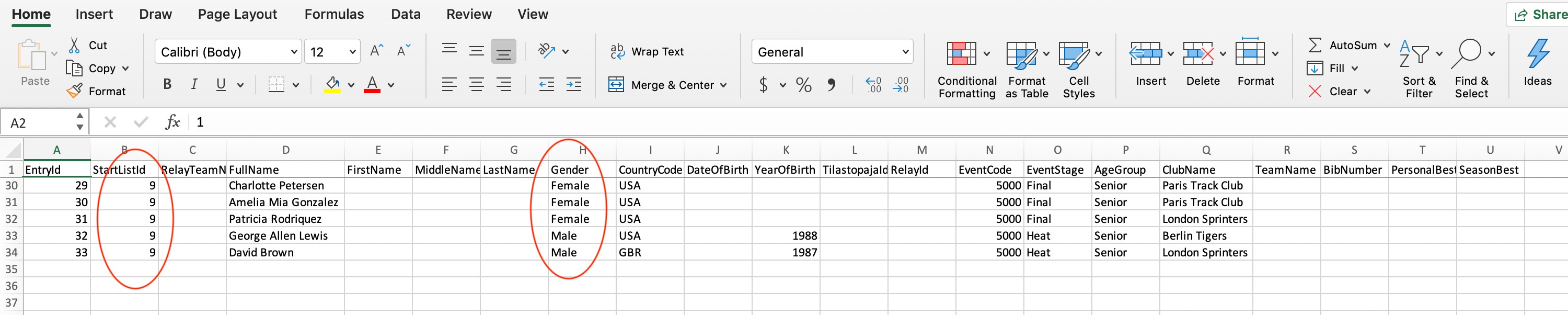
To upload a mixed-gender individual event, set Gender to Male or Female for each athlete and assign the same StartListId to all athletes. The event will be imported as mixed-gender.
6. Event Codes (EventCode)
You can use either the full event name (e.g. 100m Hurdles) or the short code (e.g. 100H) as the EventCode value. The full list of events is available in the List of Events guide on the support portal.
Event stage (EventStage) accepted values
Use one of the following values exactly as written:
- Qualification
- Preliminary
- Heat
- SemiFinal
- Final
7. Age Group Codes (AgeGroup)
You can use Auto to assign athletes to an age group automatically based on their date or year of birth. The full list is also available in the List of Age Groups guide on the support portal.
Youth and senior
Age group | Code |
U8 | Meeting_8 |
U10 | Meeting_10 |
U12 | Meeting_12 |
U14 | Meeting_14 |
U16 | Meeting_16 |
U18 | Meeting_18 |
U20 | Meeting_20 |
U23 | Meeting_23 |
Senior | Senior |
Masters
Age group | Code |
M30 | Master_30 |
M35 | Master_35 |
M40 | Master_40 |
M45 | Master_45 |
M50 | Master_50 |
M55 | Master_55 |
M60 | Master_60 |
M65 | Master_65 |
M70 | Master_70 |
M75 | Master_75 |
M80 | Master_80 |
M85 | Master_85 |
M90 | Master_90 |
M95 | Master_95 |
M100 | Master_100 |
School (US)
Age group | Code |
1st grade | School_1 |
2nd grade | School_2 |
3rd grade | School_3 |
4th grade | School_4 |
5th grade | School_5 |
6th grade | School_6 |
7th grade | School_7 |
8th grade | School_8 |
9th grade | School_9 |
10th grade | School_10 |
11th grade | School_11 |
12th grade | School_12 |
Frosh/Soph | School_Frosh_Soph |
Junior Varsity | School_Junior_Varsity |
Varsity | School_Varsity |
Division 1 | Division_1 |
Division 2 | Division_2 |
Division 3 | Division_3 |
8. School Grade Codes (SchoolGrade)
For US school meets only. Use the following codes in the SchoolGrade column:
Grade | Code |
Kindergarten | K |
1st grade | 1 |
2nd grade | 2 |
3rd grade | 3 |
4th grade | 4 |
5th grade | 5 |
6th grade | 6 |
7th grade | 7 |
8th grade | 8 |
9th grade | 9 |
10th grade | 10 |
11th grade | 11 |
12th grade | 12 |
Freshman | FR |
Sophomore | SO |
Junior | JR |
Senior | SR |
9. Opening a CSV File in Excel
Opening a CSV file by double-clicking it in Windows may cause Excel to misread characters, especially accented letters and special characters. To open the file correctly with UTF-8 encoding, follow these steps:
- Open Excel and create a blank workbook.
- Go to the Data tab and click Get Data > From Text/CSV.
- Select your CSV file and click Import.
- In the preview dialogue, set File Origin to 65001: Unicode (UTF-8) and confirm the delimiter is set to a comma.
- Click Load to import the data.
Note: If you are using an older version of Excel or need more detailed steps, refer to the Microsoft support documentation for opening UTF-8 CSV files.