
Once in your competition, select your field event to start marking your results. Please note that the high jump and pole vault have a separate guide to describe their specific details, located here: Field Events: High Jump and Pole Vault. You are now on the Event view.
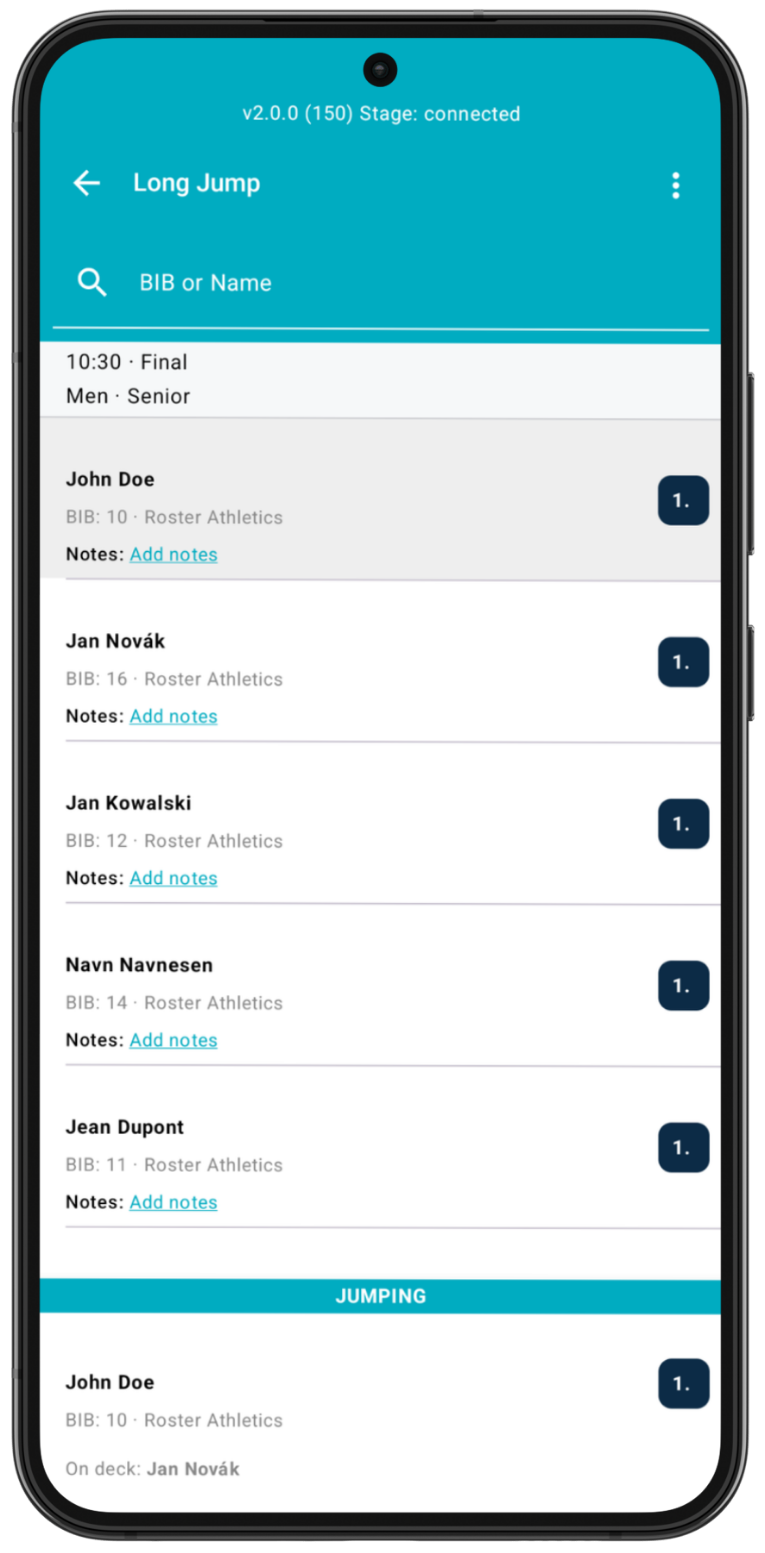
The start list that appears in the app is the one that is set in the Competition Management Platform web admin. Any changes to the start list and start order need to be made in the Roster web admin, which will then automatically propagate to the Meet Mgmt app with an active connection. You can also manually refresh the start list by swiping down on the screen in the Event view page.
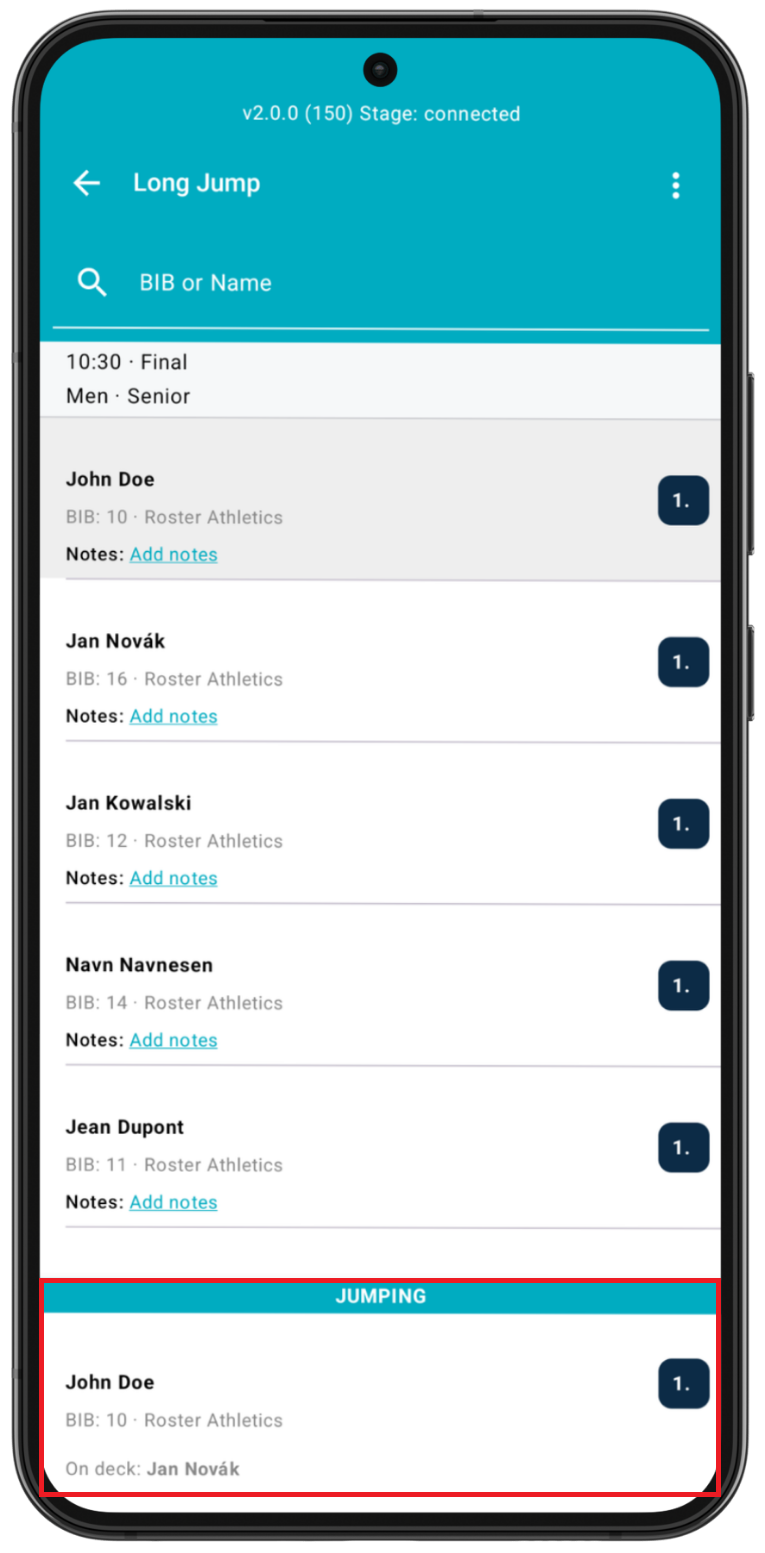
The current athlete that is active (“JUMPING” or “THROWING“) is shown at the bottom of the screen:
This guide is divided into a few sections below:
Entering a result
Click the athlete in the JUMPING or THROWING field to enter a result.
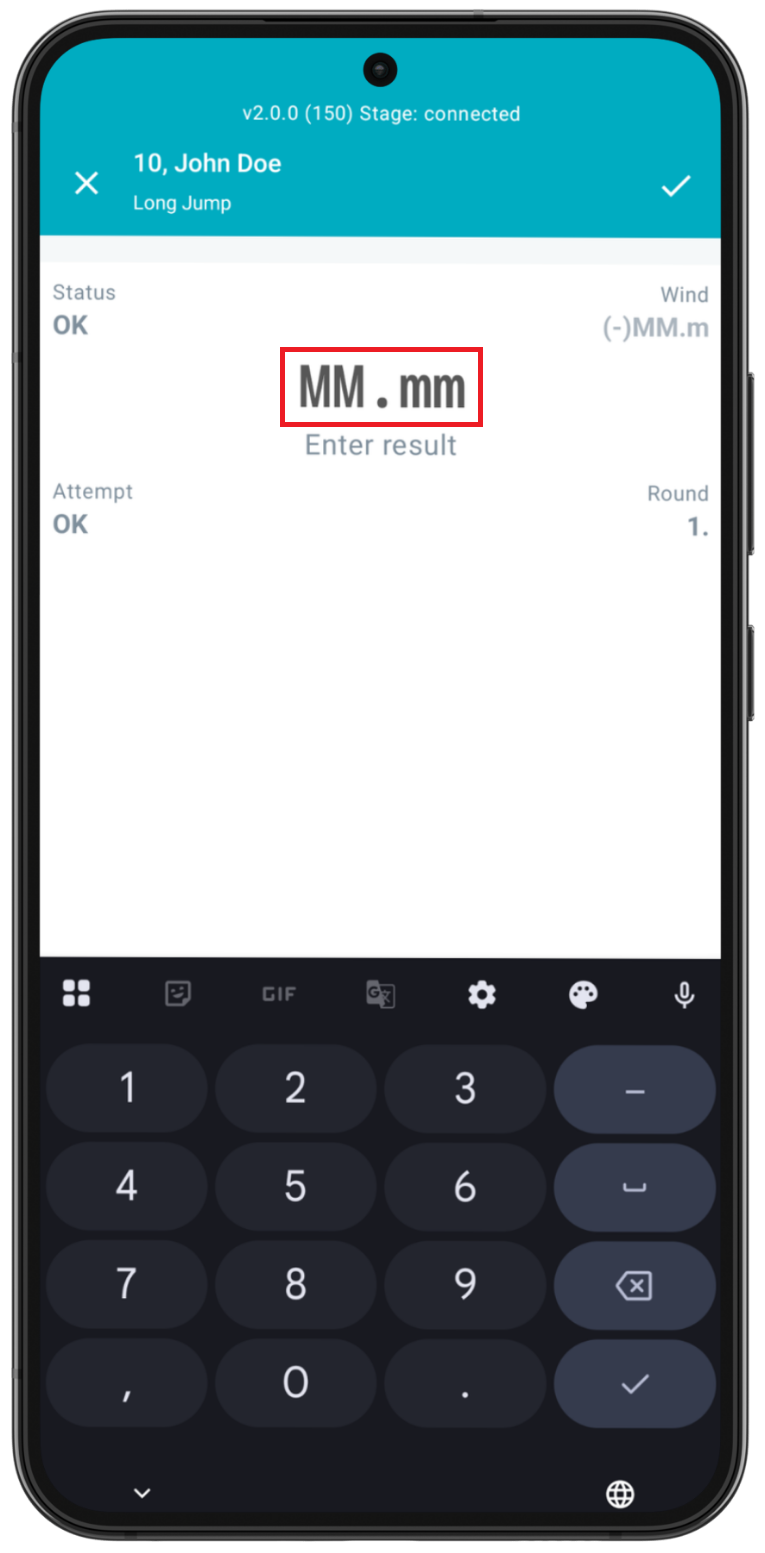
Unit format used for the competition, either metric (mm.xx) or imperial (ft-in.xx) is set by the organiser upon creation of the competition.
A valid result is entered in the following formats. Please enter numbers without any punctuation. The values will be entered with the most significant digit first.
Metric: MM.mm
For metric, you must enter both decimal digits.
Imperial: ft-in.xx for feet-inches (.00, .25, .50, or .75 only)
For imperial, please note that when entering numbers, 2 digits are always necessary for the inches, e.g. 22-09.75 (for 22-9.75) and must be between 00 and 11. Also note that the 2 decimal digits must be .00, .25. .50, or .75. If you enter different decimal digits than this in the imperial format, you will not be able to save the result; the save check mark button will not work.
Please note: If you experience issues with the native keyboard on your Android device, you can download an updated keyboard layout from Google Play (e.g., Gboard - the Google Keyboard).
Status
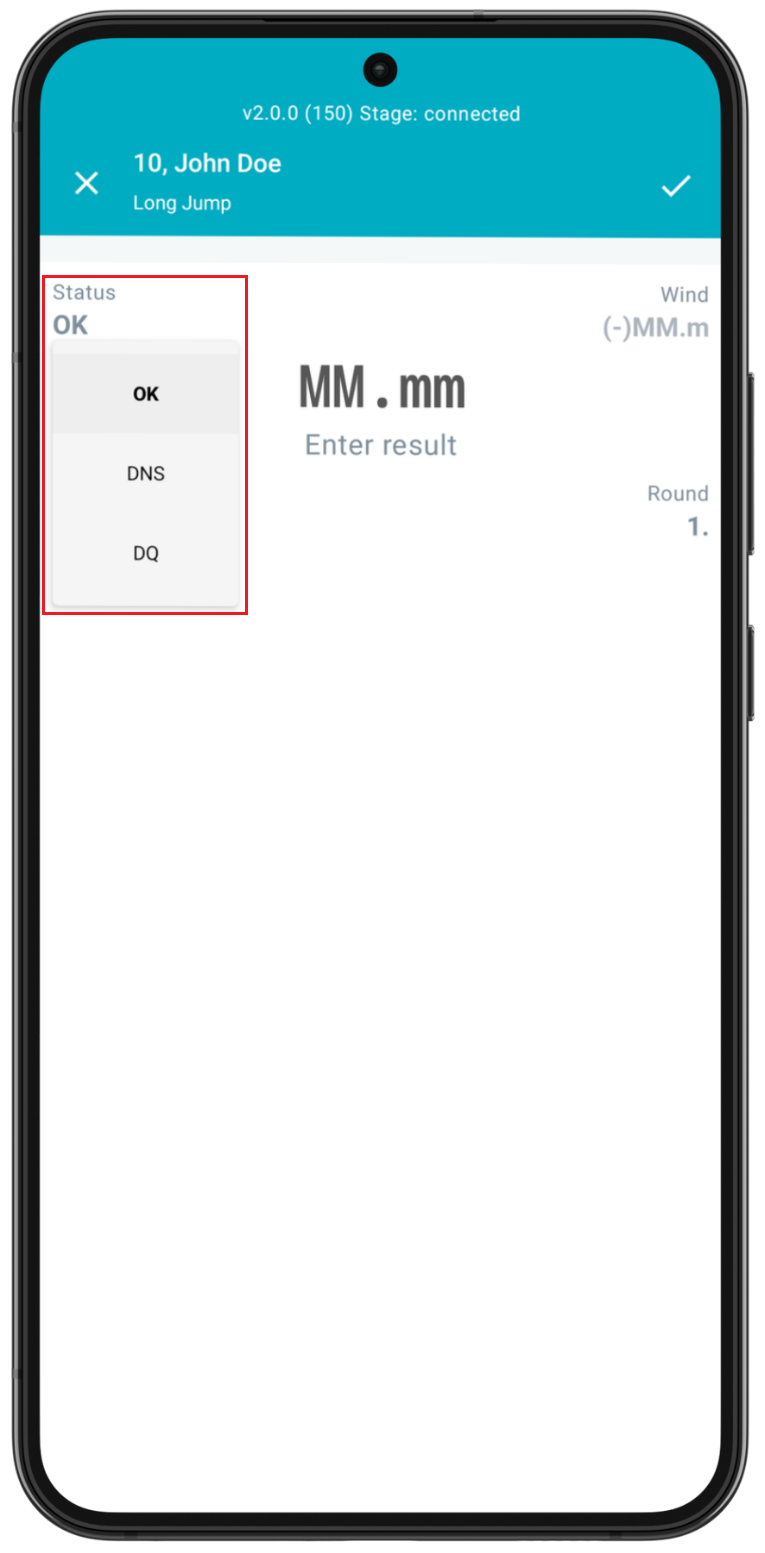
The Status field indicates the current status for the athlete. Upon pressing this field, you will see that the athlete’s status can be set to:
- OK (default setting) - athlete is competing in the event
- DNS (did not start) - athlete is listed in the event, but does not start and compete in the event
- DQ (disqualification) - athlete is disqualified by an official
- NM (no mark) - athlete competes in the event but does not register a valid result. Note that NM is automatically generated when all attempts are marked failed/invalid.
Attempt
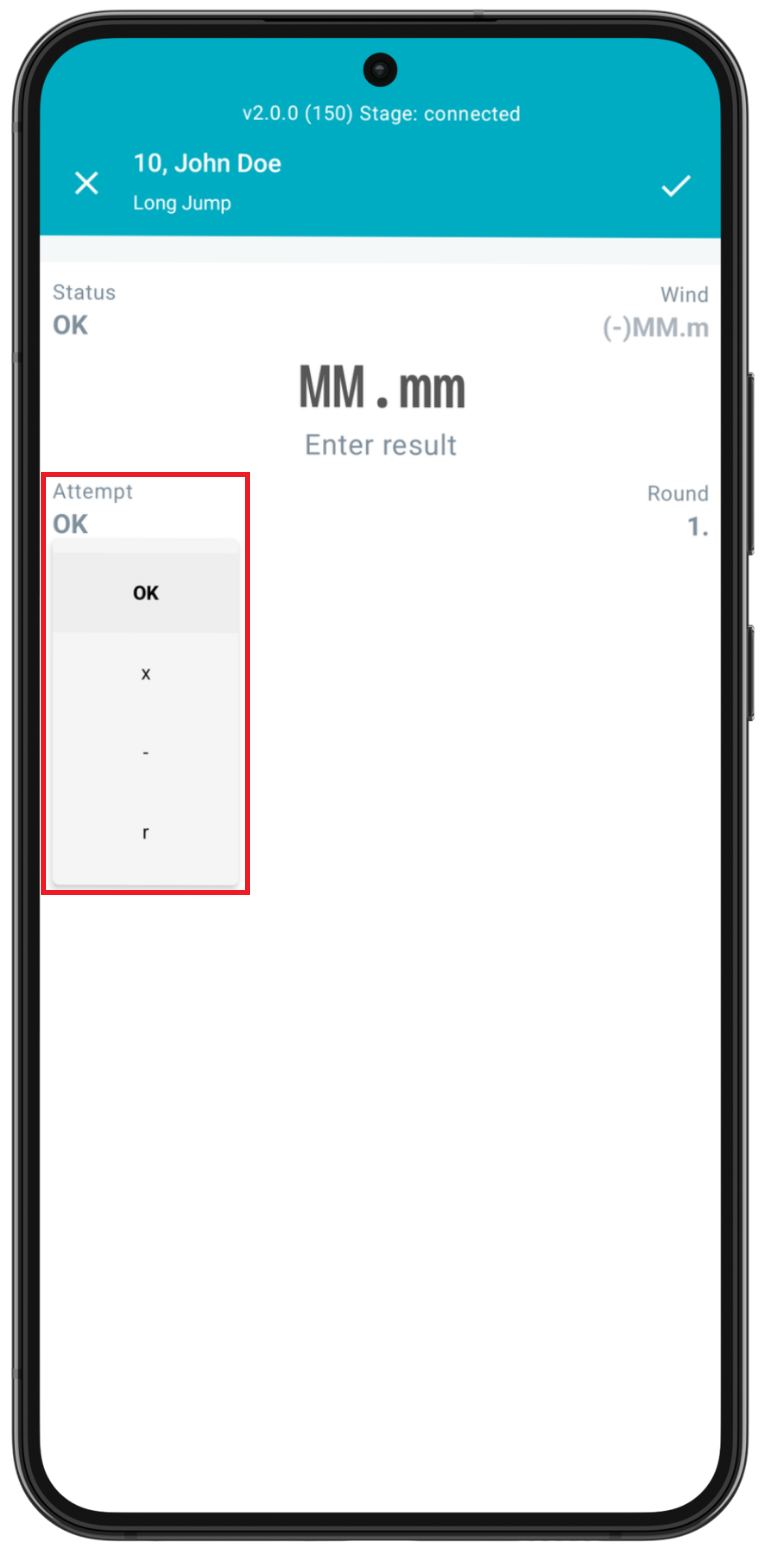
This field sets the status of the attempt. The attempt can be set as follows:
- OK (default setting) - result is valid
- x (failed trial) - attempt is invalid
- - (passed trial) - athlete passes on the attempt
- r (retired from competition) - athlete decides to retire and no longer compete in this event. When marked, the athlete will no longer appear in the “jumping” or “throwing” field.
Wind
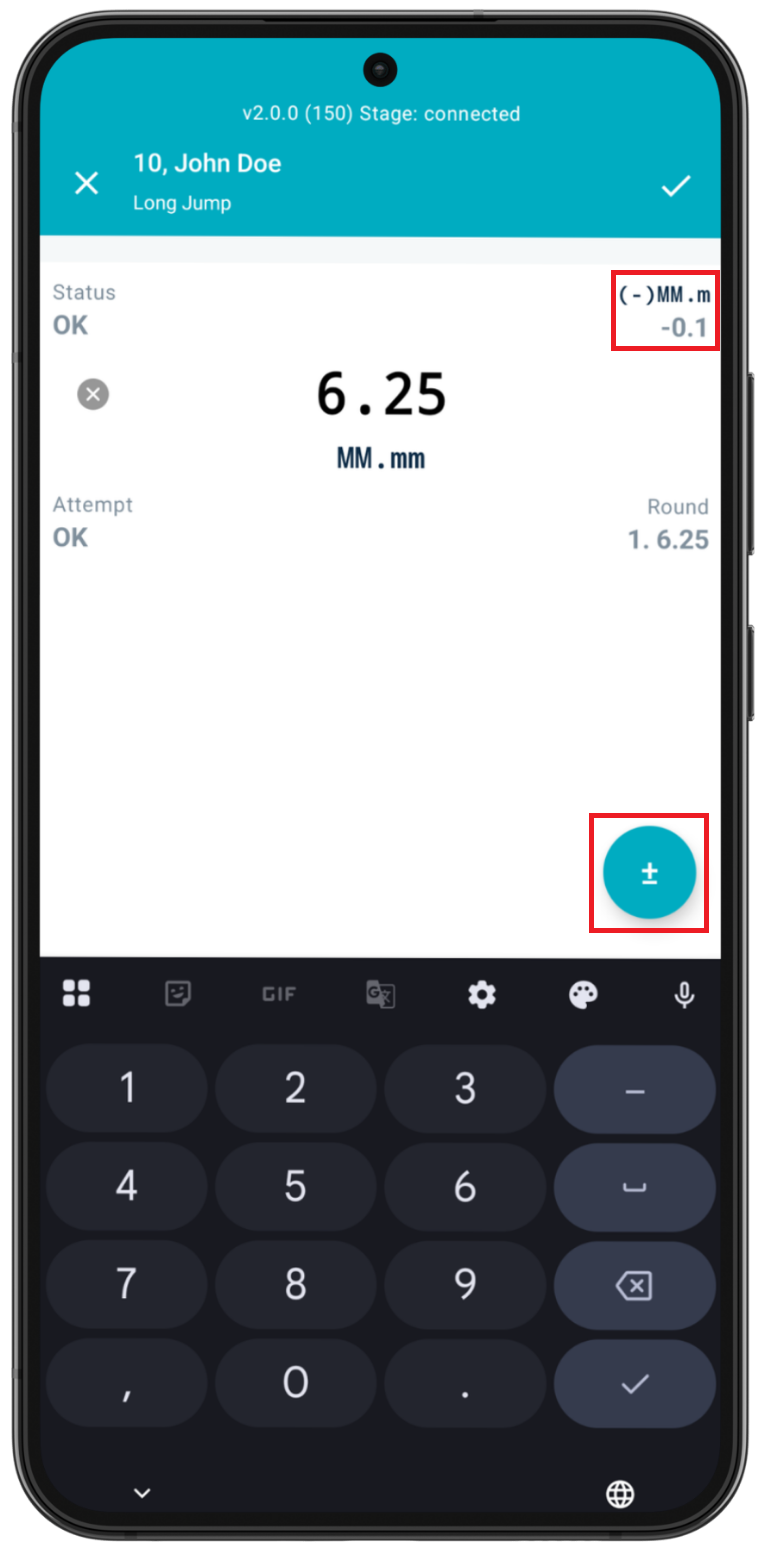
Wind result, if measured and available, can be entered through this field. The measurement is always entered in meters/second (regardless of whether metric or imperial is chosen for the competition). The value can be positive or negative depending on the wind direction.
To add a negative wind, you can either press "-" on your keyboard or click the blue "±" button.
Please note: The app does not allow two different users to add results and wind for the same attempt simultaneously. In this case, there is a risk of overwriting data. To avoid the problem, please add the wind information after adding and saving the result. This issue will be addressed in a future release.
Round
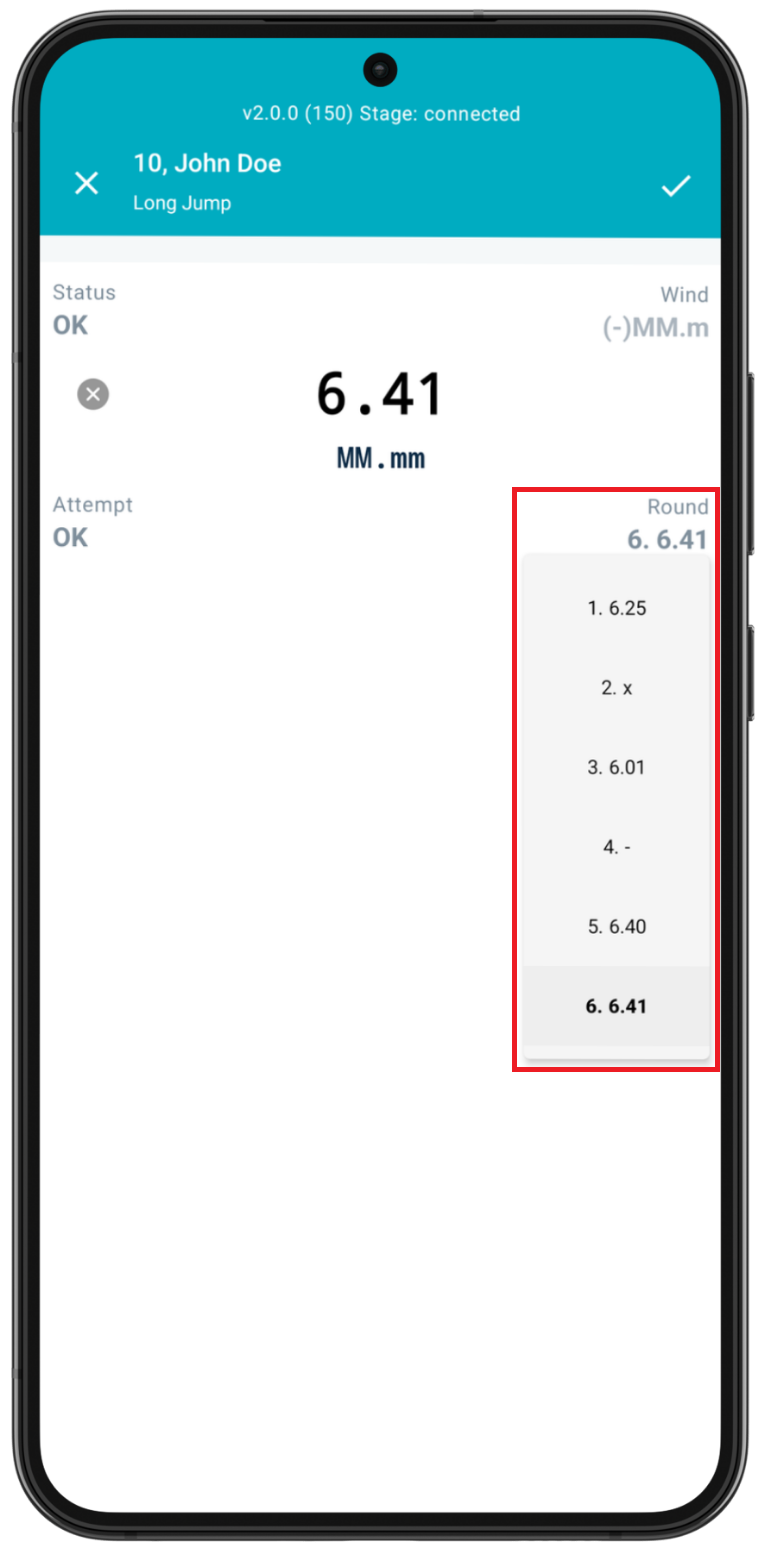
The Round field indicates the round for the attempt being entered. The default is the current round for the attempt. Pressing the Round field will display all the results for each round of the athlete so far.
If needed, you can select another attempt to edit for this athlete, i.e., correct a previous round. This can also be done in the main event page (see the section below on Navigating the Event view).
Saving the result
Once you have typed in the result, save the result by pressing the check mark icon ✓ on the upper right-hand side.
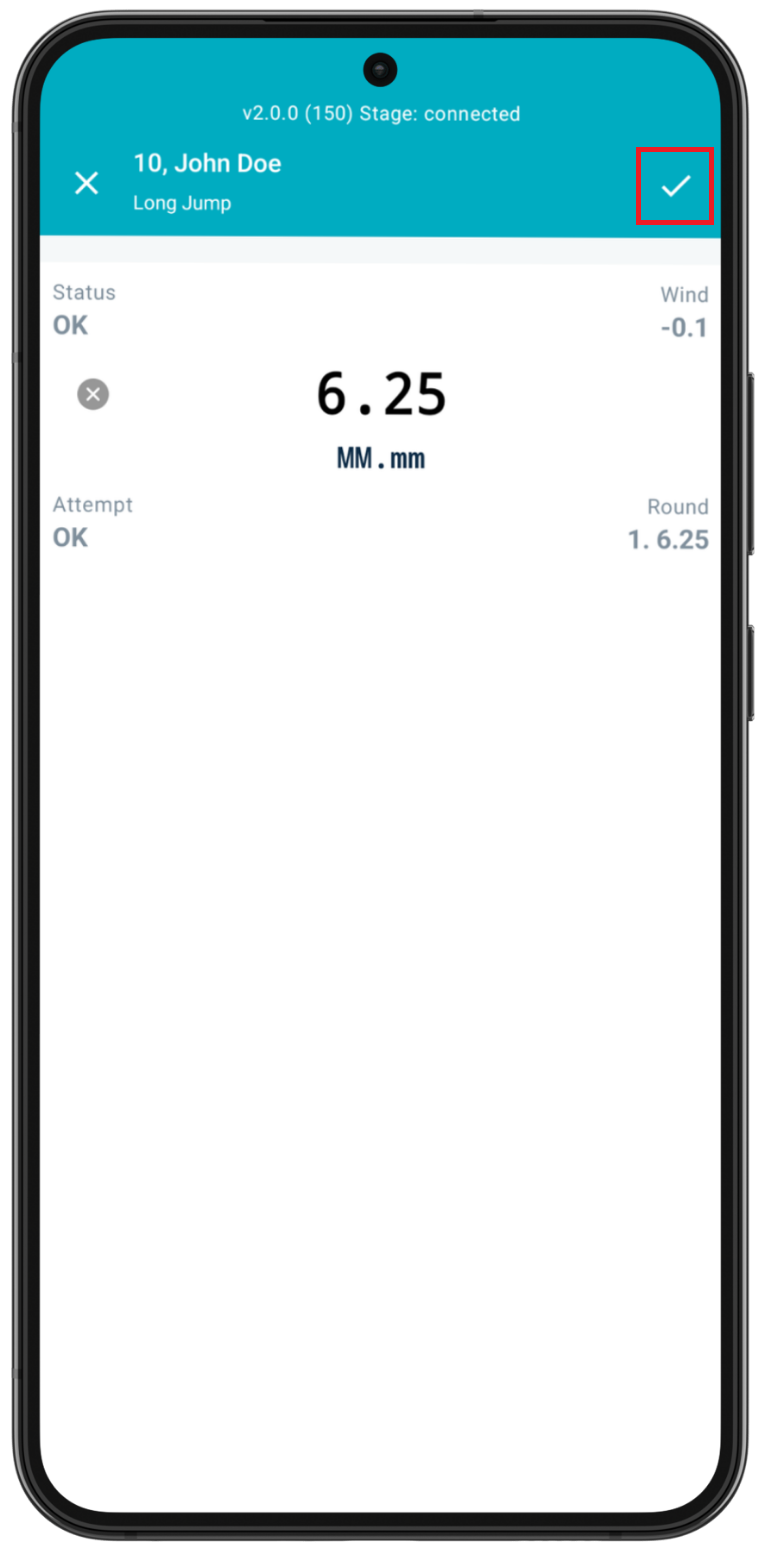
Once a result is saved, you will be back in the Event view with the saved result now visible. The athlete at the bottom of the screen is now the next in the order according to the selected field event model.
Exiting the Enter Result page without saving
Pressing the ✕ icon on the upper left-hand side will exit the result entry and return you to the Event view.
Place standings are automatically updated in both the Roster consumer app and web admin upon each saved result.
Navigating the Event view
Now that you understand the basic mechanism of how to enter results, let’s look at specific options once results are entered.
View place standings in the Meet Mgmt app
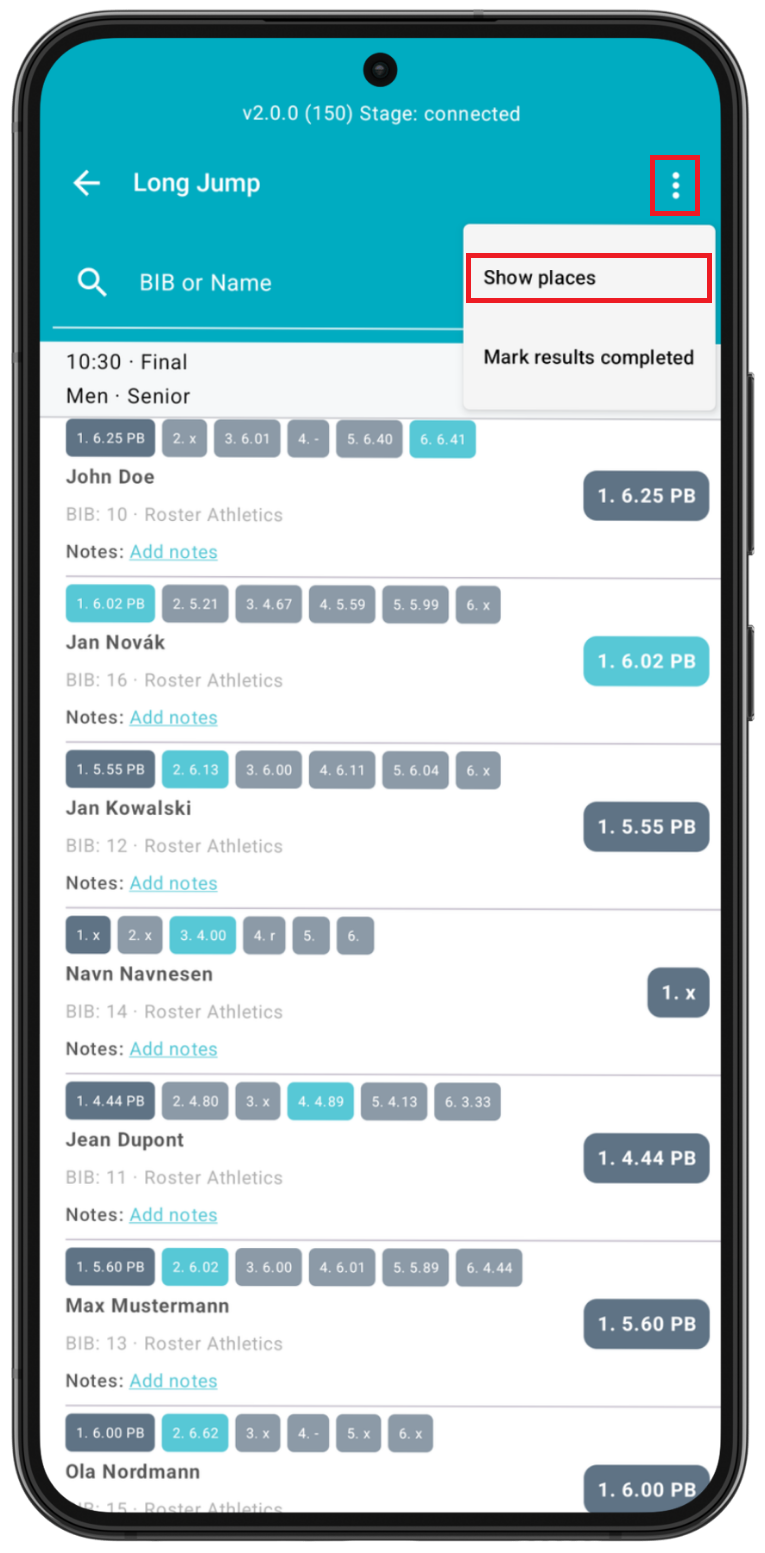
As you enter results, you can view updated place standings during the competition. To do this, press the three dots option on the upper right-hand and select Show places.
You will then see a summary screen with the place standings updated to the current attempt.
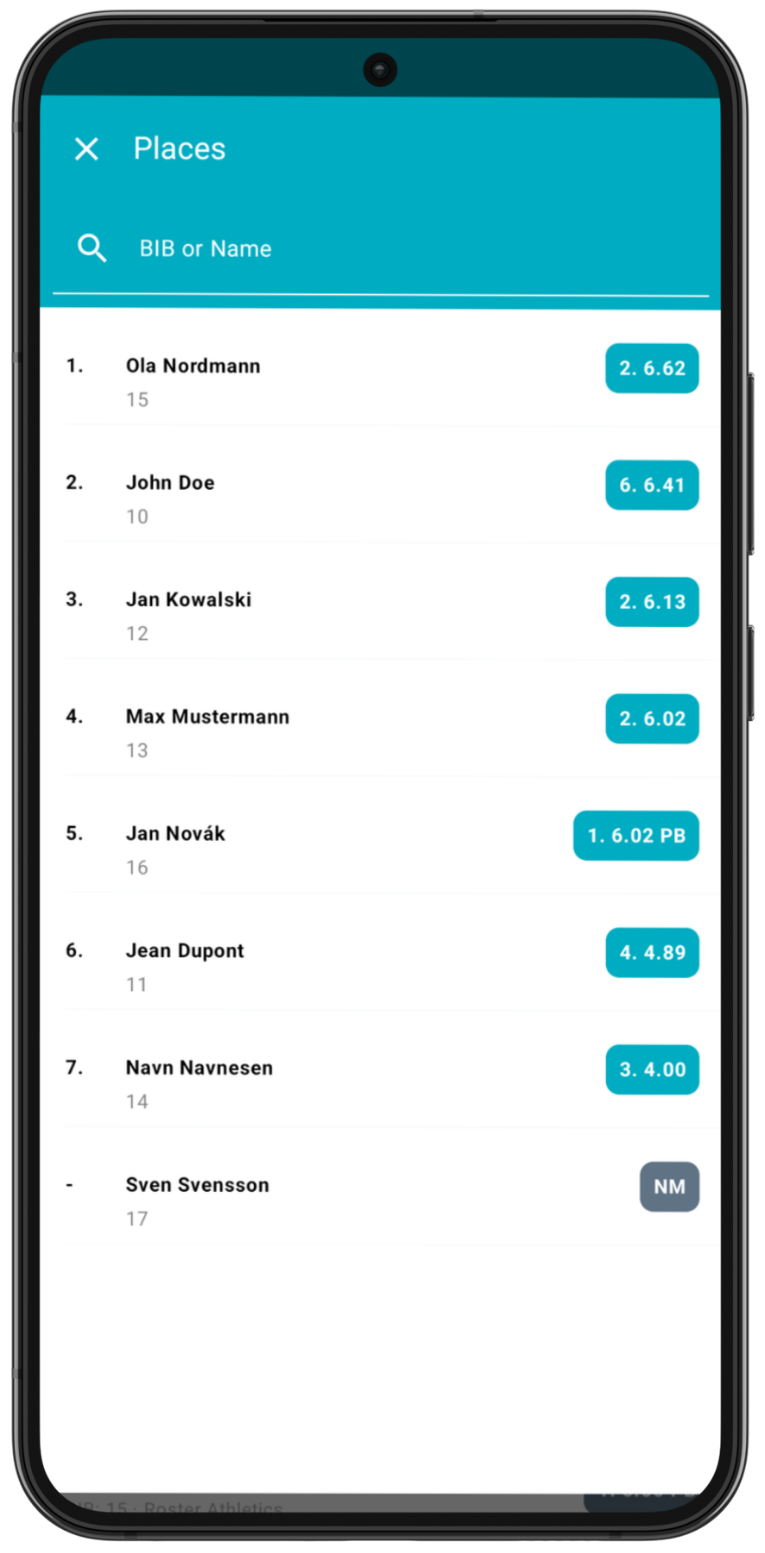
Pressing the check mark button will push an update for all results (both results and places) in this event; however, this is generally not necessary, as each entered result is updated automatically.
Mark results completed
Once you have finished marking all results for the event, you can Mark results completed through the three dots menu option. This will notify the platform and main app that the event is finished and complete. If you have multiple groups in the event, after calculating places and marking results as completed for each group, the summary group will automatically have its place standings updated as well.
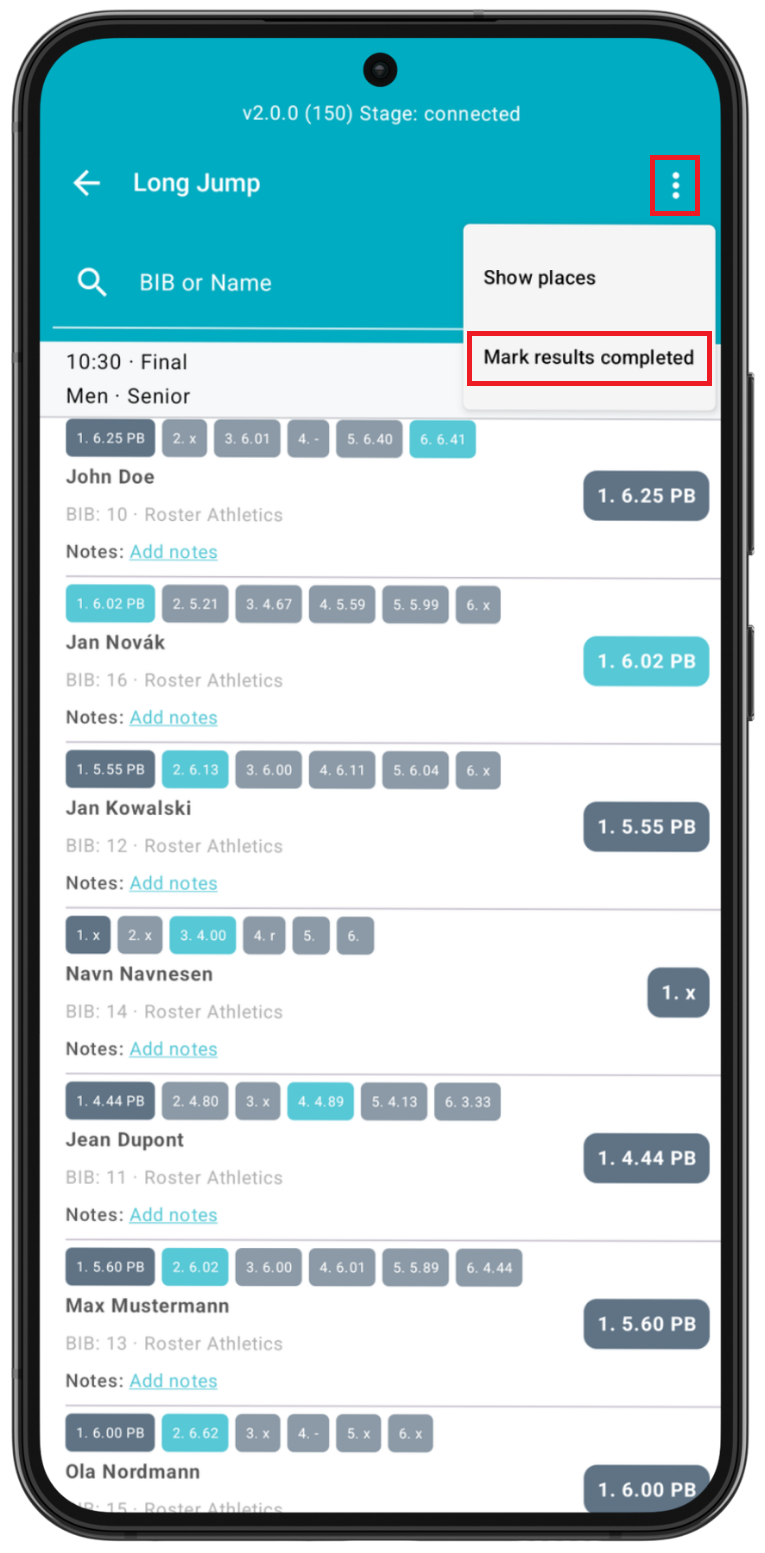
Note that results can still be edited, even after completing this step.
Searching by athlete name or bib number
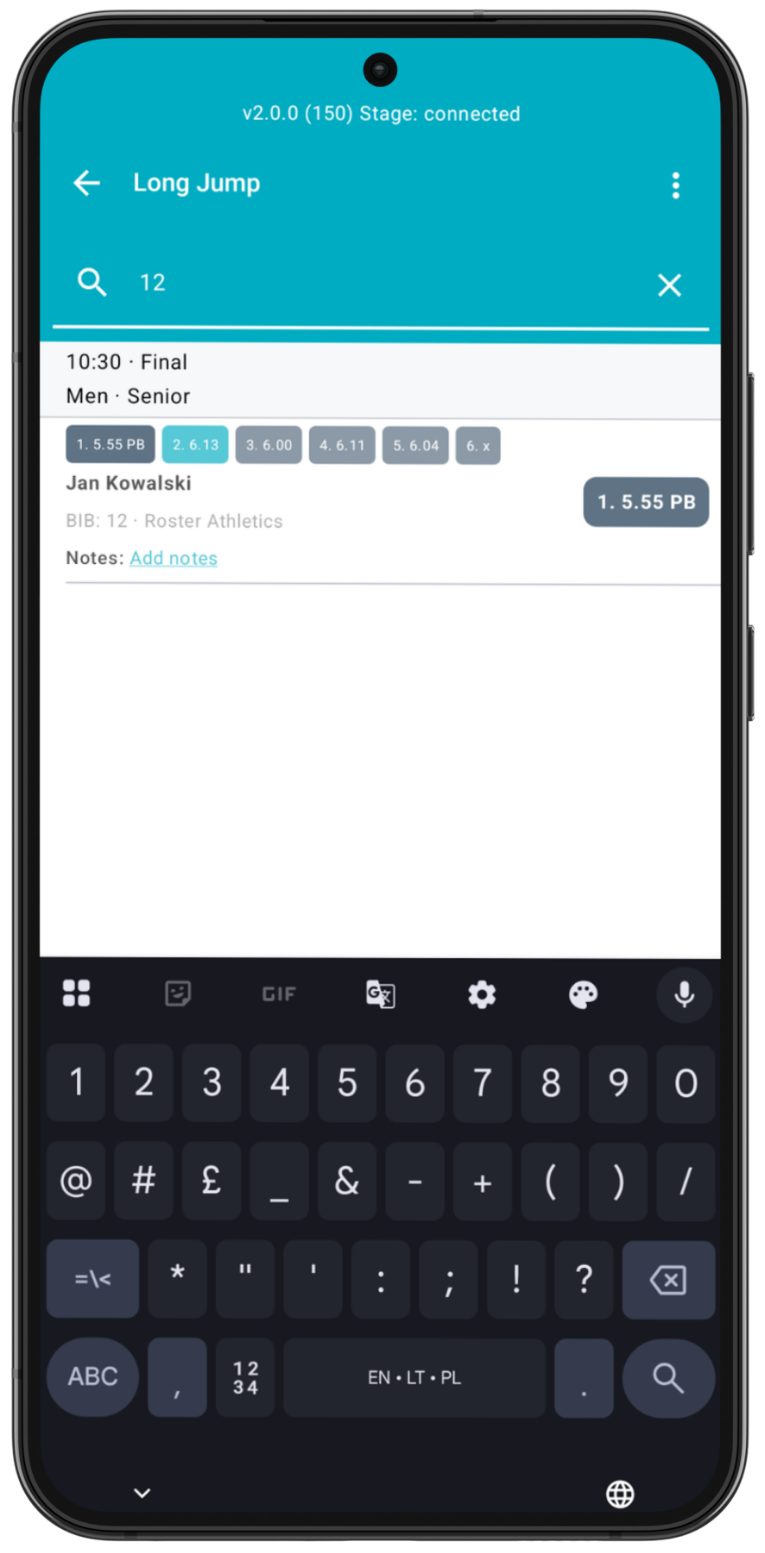
During the event, you may need to search for or update the result for a particular athlete. You can find this athlete through the search window in the Event view by entering the athlete's name (first or last) or their associated bib number.
Editing an attempt
From the Event view, you can edit any attempt from any athlete competing in the event. Previous round’s attempts can be seen above the name of the athlete on the left-hand side. The current round’s attempt is seen on the right-hand side. Pressing any of these results will place you in the enter result screen for that particular attempt.
Number of attempts and order
The number of attempts and the corresponding order are set via the web admin platform. In the web admin, the organiser can choose from various models for this category of field events. Further details can be found in the Set schedule guide.
Available options:
- Combined event: 3 attempts for all athletes.
- Four rounds to all: 4 attempts for all athletes.
- Qualification: a maximum of 3 attempts; the athlete stops after reaching the qualifying mark (if Q is set).
- Six rounds to all: 6 attempts for all athletes.
- Standard final: the top 8 athletes after three rounds advance to rounds 4, 5, and 6, with re-seeding after round 3.
- Standard final (WA, 12-12-12-10-8-6)*: the top 10 athletes after three rounds advance to round 4, the top 8 advance to round 5, and the top 6 advance to round 6; re-seeding after round 3.
- Standard final (WA, 12-12-12-8-6-4)*: the top 8 athletes after three rounds advance to round 4, the top 6 to round 5, and the top 4 to round 6; re-seeding after round 3.
- Standard final with four rounds*: the top 8 athletes after three rounds advance to round 4, with re-seeding after round 3.
- Standard final with sorting after 3rd and 5th rounds: the top 8 athletes advance to rounds 4, 5, and 6, with re-seeding after rounds 3 and 5.
- Standard final with X athletes to last rounds*: the top X athletes advance to rounds 4, 5, and 6, with re-seeding after round 3.
- Consecutive attempts: four rounds to all*: 4 attempts for all athletes, taken consecutively.
- Consecutive attempts: six rounds to all*: 6 attempts for all athletes, taken consecutively.
- Consecutive attempts: three rounds to all + final*: 3 attempts for all athletes, taken consecutively; then the top 8 athletes advance to rounds 4, 5 and 6; with re-seeding after round 3.
- Unlimited rounds to all: athletes have no fixed limit on the number of attempts, and the organiser decides when to stop the event.
Please note that models marked with an asterisk are available in the app version 2.0.0 or later.
For more information about the models, refer to the Field Events (except High Jump and Pole Vault) guide.
If no model is selected, the app will default to:
- Qualification for a qualification stage,
- Combined event for combined events,
- Standard final for a final stage.
Please note that additional attempts and results can also be added manually via the web admin for any event.
Operation of the default Standard final model
If an event has more than 8 athletes, all athletes are given three attempts. The top 8 athletes, based on their best marks from these attempts, advance to the final three attempts.
From Round 4 onwards, only these 8 athletes continue to compete and appear as “next up” in the system. The qualification and progression to the final rounds are calculated and handled automatically.
Starting with Round 4, the attempt order is re-seeded, with the athlete who achieved the best mark in the first three rounds performing last.
If there are fewer than 8 athletes, all athletes automatically advance to the final three attempts.
Multiple age groups and mixed events
For multiple age groups and mixed events using the Standard final model, the top 8 athletes in each gender and age group automatically advance to attempts 4, 5, and 6 in the Meet Mgmt app.
Note for U.S. school competitions
For U.S. school competitions where events are limited to three attempts, select the Combined event model in the web admin when setting up the event. This limits athletes to three attempts.
As mentioned earlier, additional attempts and results can be added manually via the web admin if required.
Adding notes
Click Add notes under the athlete's name if you wish to add a text note for this specific athlete.
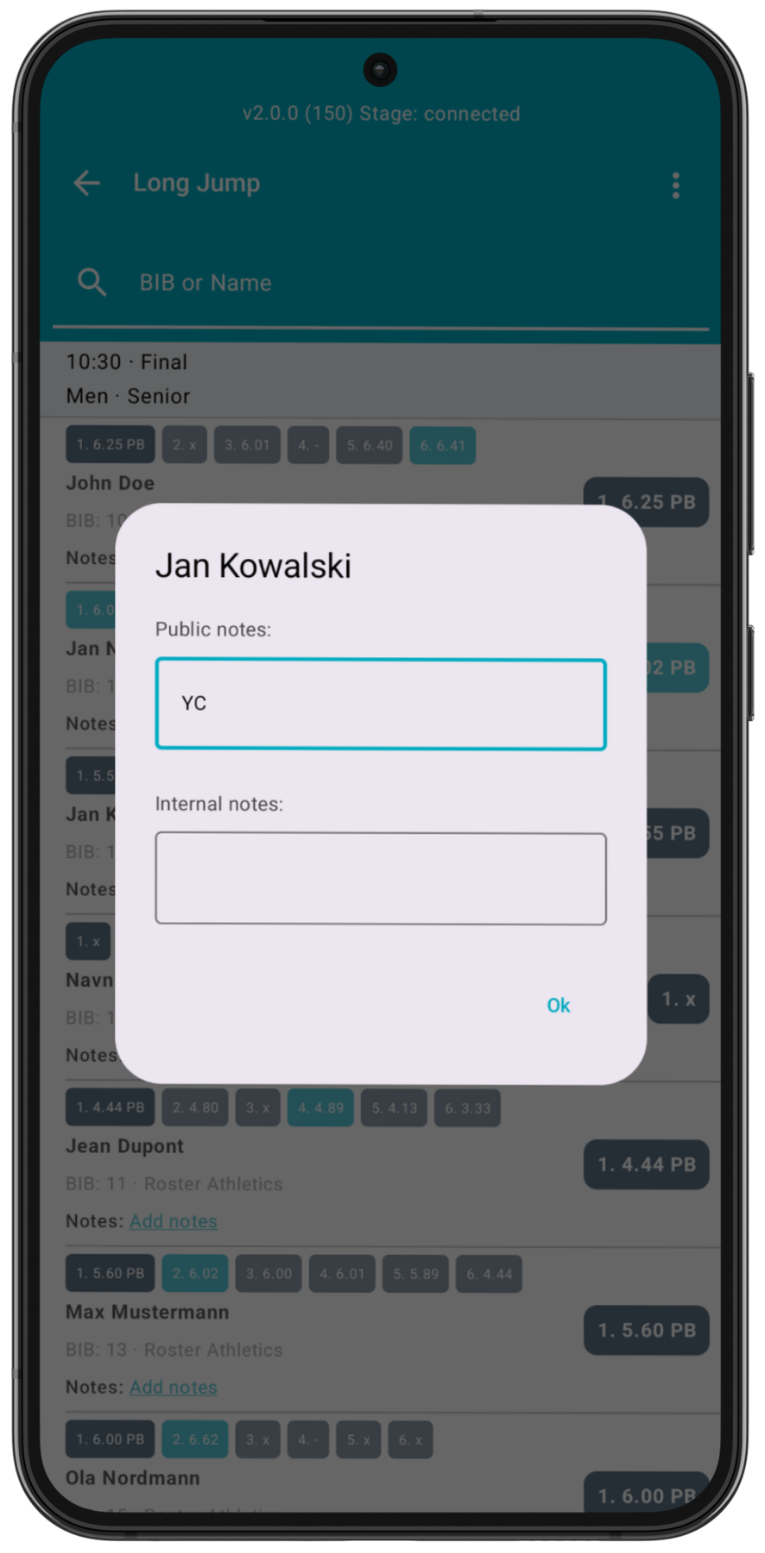
You can add Public notes, which are visible in the Roster Athletics app, the public website with start lists and results (https://meets.rosterathletics.com/), and CSV and PDF files (start lists, results and scoresheet). You can use this field to add information about Yellow Card (YC), Second Yellow Card (YRC), Red Card (RC) and more.
You can also add Internal notes, which are visible ONLY in the Meet Mgmt app and web admin for other users who have permission to access the competition.
Notes can be as long as needed, but they may be trimmed in some views.