
This guide describes how to manage athlete registrations when the registration window is enabled and open or after the registration deadline has passed. Please see the Organisers: Registration setup guide to learn how to set up and enable registration for your competition.
This guide is structured as follows:
- Approving/Rejecting registrations
- Refunding to a participant
- Removing/keeping a participant with or without a refund
- Messaging between organisers and registrants
- Contact details
- Downloading a CSV file
Approving/Rejecting registrations
Once the competition opens for sign-ups and participants are registering, you will manage all approval activity on the REGISTRATION → Management - events page.
Here, you will see the list of athletes and relay teams in the registration process, along with their registration status.

The top row contains sortable columns with the status for each athlete/relay team (the Licence column is visible only when the licence verification setting is enabled).
When participants register for a competition requiring organiser approval (default), all athletes/relays must be approved before paying and being added to the start list. Approval and other actions are toggled in the far-right-hand column via the three dots icon. Once the action is chosen, the participant will also see the updated status.
When a participant has signed up for an event, the organiser can choose to:
- Approve - participant can move into payment.
- Reject - participant will not be able to pay and join the event.
- Wait-list - participant is on the waiting list pending later approval or rejection.
Please note: Registrants will be automatically informed by email about the change of the approval status (e.g. if the organiser manually changes the status from Wait-list to Approve). 24 hours before the registration deadline, a reminder will also be sent automatically to registrants who have the approval status and have not yet paid for the start.

Participants can be approved (or other actions) individually or in bulk by selecting the checkboxes on the left-hand side and then pressing the appropriate Selection option.

You will find messages notifying you of certain circumstances, including the presence of foreign athletes competing in this competition without a licence.

Once participants take action, such as paying or resigning from the event, their payment or approval status will be updated and displayed immediately on the same page.

Once the athlete's or relay's payment is complete, they are automatically transferred directly to the start list for that event.
Refunding to a participant
If the event fee is refundable, participants can request a refund after payment and receive a credit toward another event or a refund in the form of a payment.
- Credit refund: the total amount for the event will be credited to the participant's account. They can use the credit in the same competition for a different event or a future competition from the same organiser.
- Payment method refund: the total amount minus applicable transaction fees (e.g., credit card fee, Roster service fee).

Once the participant has requested a refund of either type, the organiser can accept or reject the refund. In either case, the participant will be removed from the start list unless he/she has a result. If no action is taken, the participant stays on the start list.
You will see a red icon warning in the top header (next to the competition name) if there is a refund request. Clicking the red icon and selecting Refund requests (events) takes you to the Registration management view, which shows all athletes or relay teams who have currently requested a refund.
You can also find all refund requests by going to the Registration management view Payment column filter, and selecting the appropriate option.

You can refund in bulk by selecting the checkboxes on the left-hand side and pressing the appropriate Selection option. Remember not to close the browser while a batch operation is in progress. Closing the browser will stop the operation.

The registrant will be informed by email whether their refund request has been accepted or rejected.
Removing/keeping a participant with or without a refund
Once a participant has submitted payment and is on the start list, the organiser has the following choices to remove or keep the athlete or relay team using the three dots icon options:
- Remove and refund with credits.
- Remove and refund to method of payment used.
- Remove without refunding.
- Keep and refund with credits.
- Keep and refund to the used method of payment.

Please note: To be able to delete an event with registration, you must first remove or reject all participants (with or without a refund). Once all event registrations are resolved, you can go to the Schedule and delete the event by clicking the three dots icon and selecting Delete.Messaging between organisers and registrants
The messaging feature lets you communicate directly with registrants about support needs, adjustments, or participation questions.
You will see a red notification icon in the top header (next to the competition name) when a new message is received. Clicking this icon and selecting Registration messages opens the Registration management view filtered to show only registrations with unread messages.
All messages can also be accessed in the Registration management view by using the Msg. column filter and selecting one of the following options:
- All — all registrations, regardless of message status
- Has a message — registrations with at least one message
- No message — registrations without any messages

Click the message icon to open a chat with the participant. The icon indicates message status:
- light grey — no messages
- dark grey — messages read
- blue — unread messages

To reply, enter your text in the Post message field. Sending a message will automatically mark the conversation as read (icon changes from blue to dark grey). You can also manually mark messages as read by clicking Mark as seen. Each new message from the participant will change the icon back to blue.
Both the organiser and the participant will receive an email notification about a new message.
Organisers can initiate a conversation with any participant at any time, even if the participant has not sent a message during registration. This option allows you to contact a registrant individually. To contact all registrants or a selected group, use the Email communications feature.
Contact details
If you want to contact the registrant without using our messaging system, you can use the email or phone number provided by the user. You can find them by clicking the three dots icon and selecting Contact details.
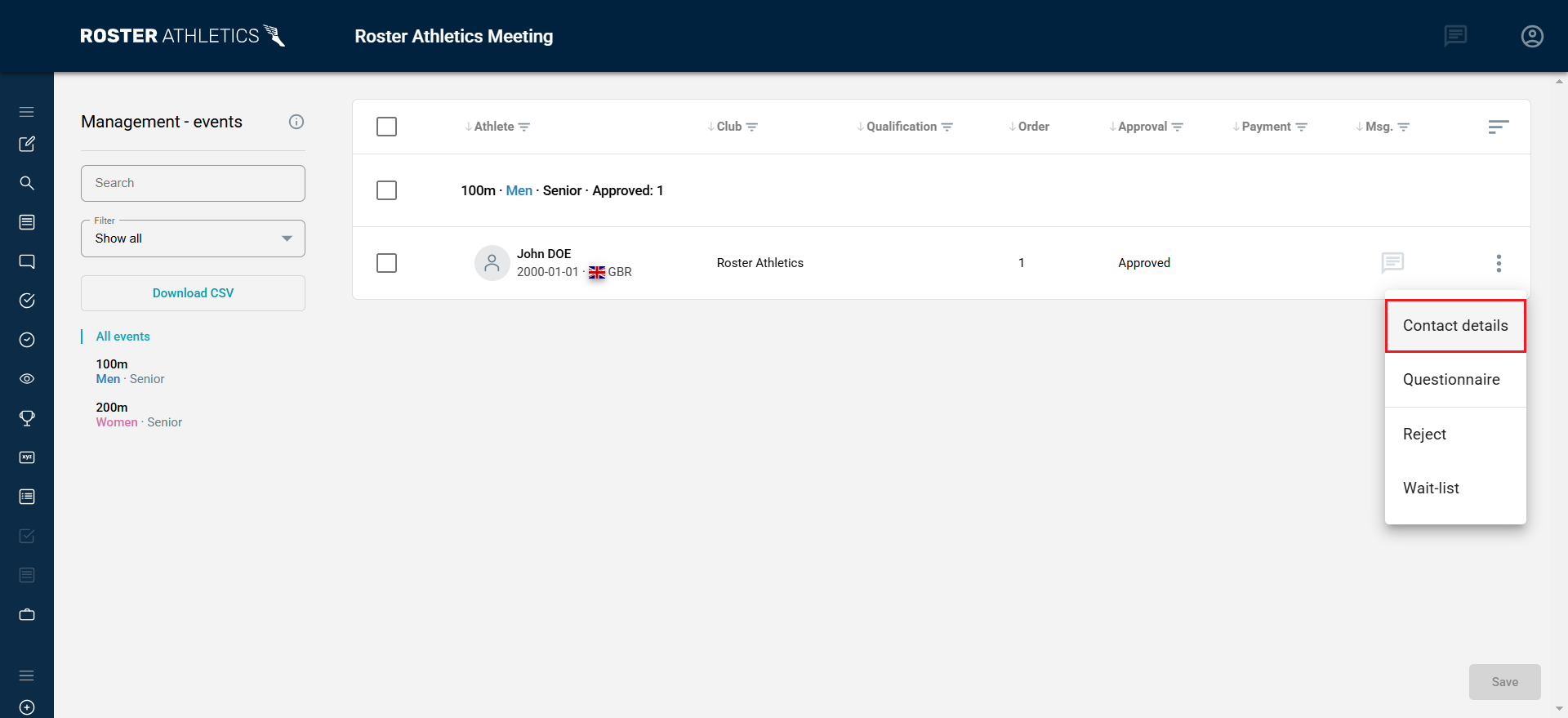
Under the three dots menu, you can also find all the athletes' answers to the questions in the Questionnaire (if the option has been enabled). For more information, see the Organisers: Questionnaire guide.
Downloading a CSV file
You can download a CSV file containing registration information by clicking the Download CSV button.

The file contains the following columns:
- MeetingName - The competition's name.
- Event - Event's name.
- Gender - Event's gender.
- AgeGroup - Event's age group.
- RegistrantName - Name of the person signing up themself and/or others.
- RegistrantEmail - Email address of the person signing up themself and/or others.
- RegistrantPhone - Phone number of the person signing up themselves and/or others.
- ParticipantName - Name of the participant.
- Club - Participant's club.
- Licences (separate columns per federation) - Licence number of the athlete (if such exists).
- ApprovalStatus - Status of the approval, e.g., Start list, Rejected, Removed, Resigned.
- Message - The first message to the organiser.
- If the questionnaire is enabled, the questions and answers will be included as the last columns. For more information, see the Organisers: Questionnaire guide.
For information on downloading and reading the downloadable CSV file with payment data, please see the Bookkeeping user guide.