
This guide explains how competition organisers can create and manage athlete profiles in Roster Athletics, including adding personal details, club affiliations, and performance records.
You can add a new athlete to the Roster Athletics database from the start lists of a competition, or from OVERVIEW → Athletes in the left-hand side menu. Depending on the place, follow these steps:
Step 1: Creating a new athlete
To add a new athlete from the start list, click Add athletes → Create new.

To add a new athlete from the OVERVIEW → Athletes in the left-hand side menu, click Create new athlete.
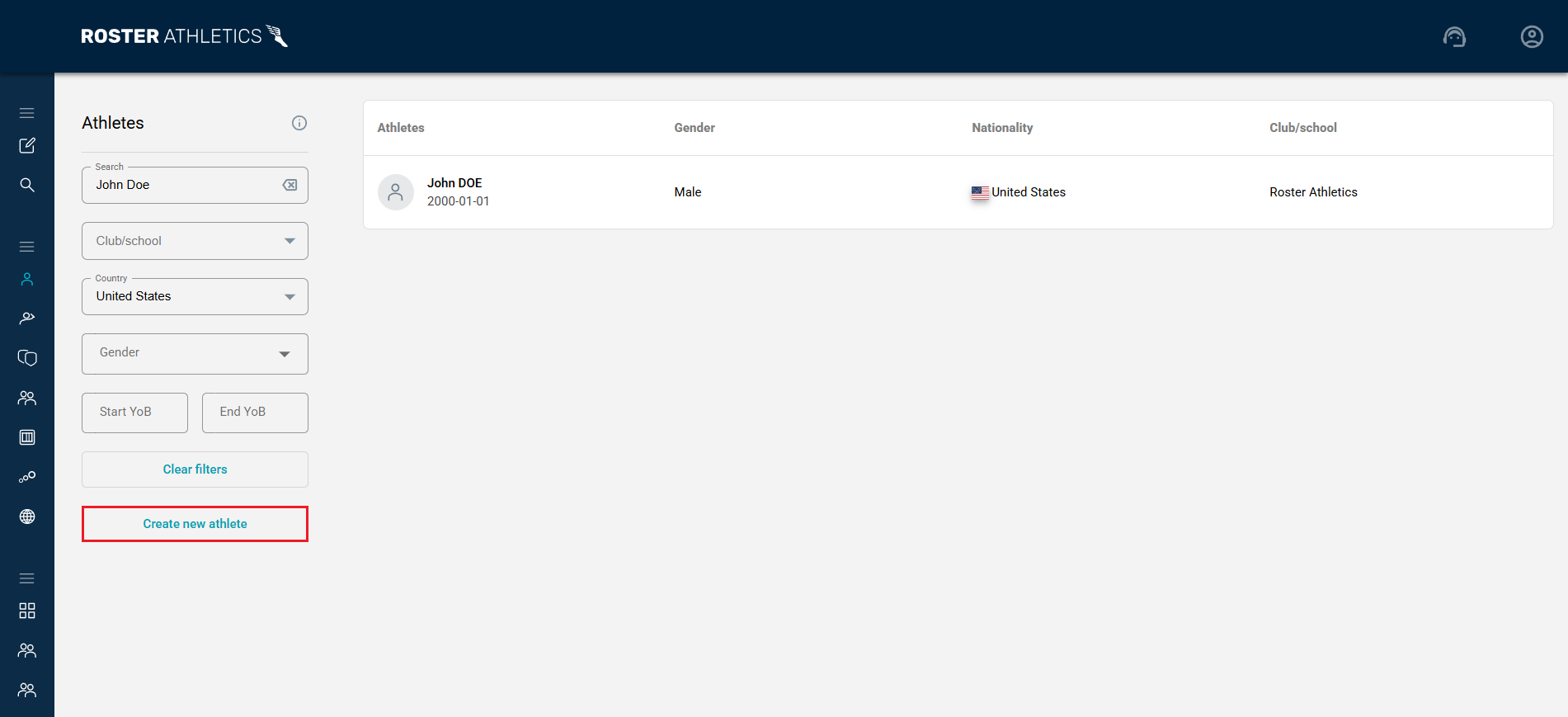
Step 2: Entering data
The Create new athlete window will open.
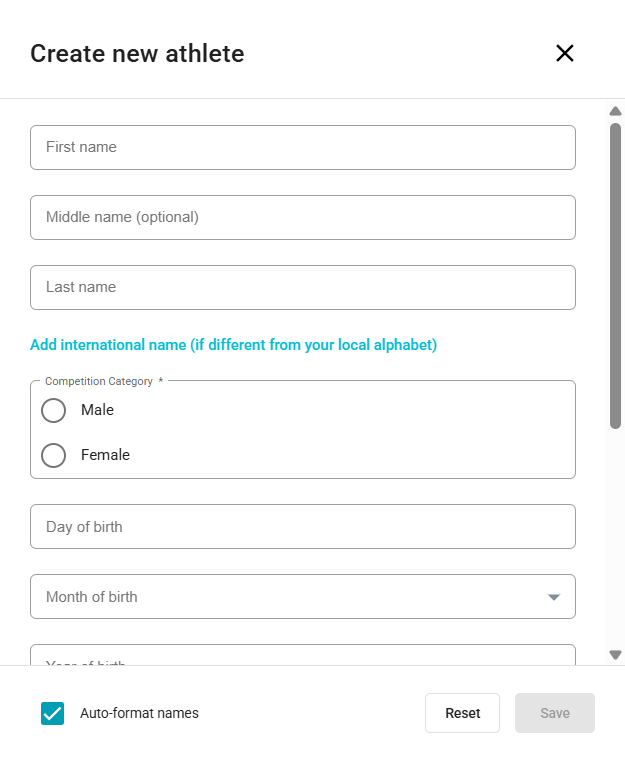
To add a new athlete, you must enter or select mandatory fields:
- Given/First name
- Surname/Last name
- Gender
- Country
You can also add a Middle name, a full Birthday (Day, Month, Year), or just the year if the full date is not known.
If you select the United States as a country, you will see a new Grade field that can be used if applicable.
International name
If the athlete's name differs between the local alphabet and Latin, you can add the International name.
Example of using an international name:
- If the athlete's local name is Γιάννης Παπαδόπουλος, enter Giannis Papadopoulos as the international name.
- If the athlete's local name is John Doe, there is no need to enter the international name.
The format of athletes' names (local or international) displayed in the start lists and results depends on the Athlete name display setting that can be changed in the competition details. For more information, see the Set up a competition guide.
If you wish to use capital letters within a name (e.g. if you'd like to format to McDonald), turn off the Auto-format names option.
Step 3: Adding a club
You can also add a club, a school, or mark an athlete as unattached if they are not club or school members.
To assign an athlete to a club or school, click the Add club/school button and find your club/school in the Select club/school window.

You can add more clubs once the athlete's profile is created. See the Clubs section below.
For more information on adding a new club or school, see the Add club/school guide.
If an athlete is not a member of any club or school, select the Unattached option.
Step 4: Para classes
If you are adding a para athlete, you can choose one or two Para classes (one T-class and one F-class) from the fields at the bottom of the window.

Step 5: Saving
After adding all the data, click the Save button.
Important:
After an athlete is added to a competition or receives a licence, the following fields cannot be changed without contacting Roster support:
 • First name
 • Last name
 • International name
 • Gender
 • Date of birth
Step 6: Editing
If you have added a new athlete correctly, you will see a window with a menu containing links to Personal, Clubs, Licence, and Records. The Permissions button will also appear at the bottom of the page.
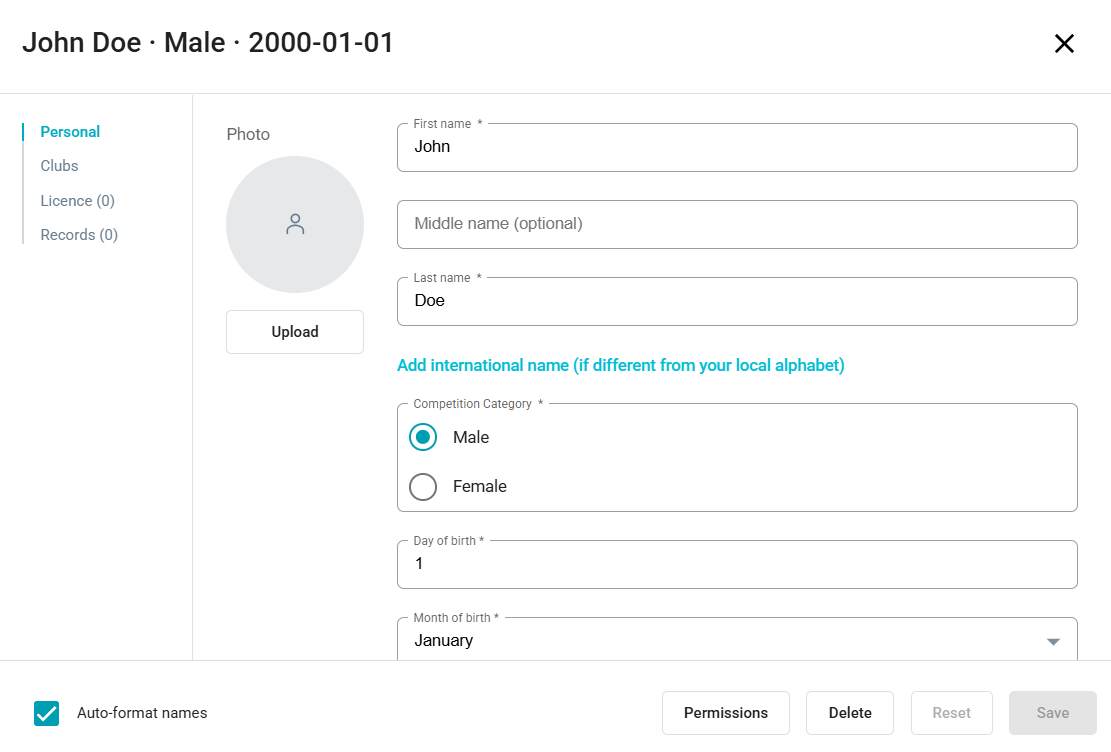
Photo
In the Personal tab, in addition to previously added information, you will find the option to add a photo. To add a new photo, click the Upload button and upload a photo of the athlete. All photos are verified by Roster Athletics Staff and will only be displayed once approved.
Clubs
Under Clubs, you can add all of the athlete's affiliated clubs and schools. Next to the name of a club managed in the Roster database by its representative, you will find the verification status. Verified members of that club can use the group payment feature if it has been activated. Learn more in the Organisers: Group payment guide.
Licences
Under Licence, you can add a new licence number for the following federations:
- Athletics Northern Ireland
- England & Wales Athletics
- Greek Athletics
- Icelandic Athletic Federation
- Lithuanian Athletics Federation (legacy)
- New Zealand Athletics
- Romanian Athletics
- Scottish Athletics
- TFRRS (NCAA)
- World Athletics
- World Para Athletics (SDMS)
Licences for the following federations are managed through the Roster Athletics registration portal and can only be added to and paid for by registrants:
- Lithuanian Athletics Federation
- Athletics Federation of Nigeria
Records
Under Records, you can view the athlete's personal and season records. If you created the athlete profile or have edit permission, you can add records manually by clicking the Add records button.

In the new Add new PB & SB window, select the right season, event, and implement (if relevant). Enter the record in the proper format (see below) and save. Your records will be marked as added by the Organiser (in the Source column and start lists).
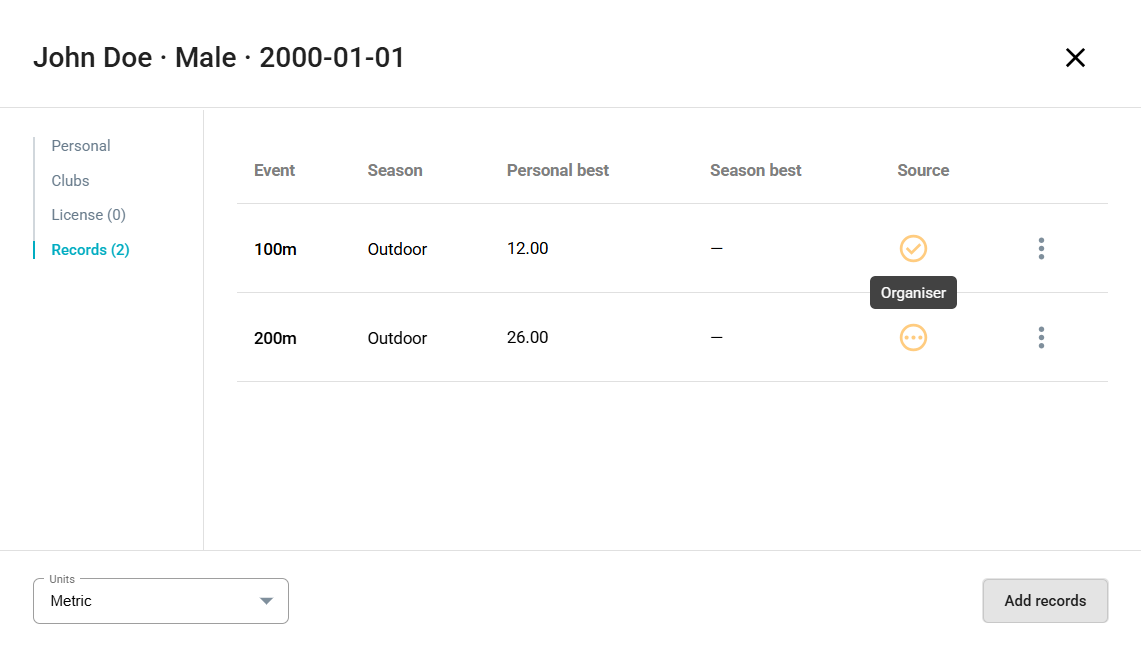
In the lower-left corner, you can switch between metric and imperial (feet-inches) units.
Proper format of records:
Track Events (Sprints & Distance)
Use the following time formats depending on event length:
- Seconds only: SS.ss
Example: 10.85 (100m)
- Minutes and seconds: M:SS.ss
Example: 1:50.13 (800m)
- Hours, minutes, and seconds (with decimals): H:MM:SS.ss
Example: 1:20:15.20 (20000m Race Walk)
- Hours, minutes, and seconds (no decimals): H:MM:SS
Example: 2:10:11 (Marathon)
Field Events
Use distance/height formats based on the measurement system:
- Metric: M.cm
Examples:
6.13 (Long Jump)
20.13 (Shot Put)
- Imperial: ft-in.xx
Example: 180-10.25 (Discus Throw)
Combined Events
- Enter as a whole number (points only)
Example: 7542 (Decathlon)
Important:
 • Decimal separator must be a dot (.), not a comma.
 • All results must include two decimal places. Enter 51.60 instead of 51.6.
 • Do not include units (e.g. “s”, “m”, “ft”).
Permissions
After creating the athlete, you can manage access permissions.
By clicking on the Permissions button, you can add users who will have permission to read, edit or delete data for this athlete. For more information on adding permissions to a new user, see the Permission to edit athlete guide.